
Quick answer (2026): To embed a form on WordPress, install a form builder plugin, create your form, set up email notifications, then place the form on any page using a shortcode or block. The whole process usually takes under 5 minutes and requires no coding.
- 3 reliable ways to embed a form on WordPress (2026)
- Step-by-step setup using Easy Form Builder
- Common mistakes that prevent forms from working
- SEO + conversion tips to improve results
Best Ways to Embed a Form on WordPress (2026)
WordPress forms are typically embedded using one of the methods below. Pick the one that matches your site setup and editing workflow.
| Method | Skill level | Time | Best for |
|---|---|---|---|
| Shortcode | Beginner | 1–2 min | Pages, posts, widgets |
| Gutenberg block (if available) | Beginner | 1–2 min | Block editor workflow |
| PHP template embed | Advanced | 5–10 min | Custom themes & hard layouts |
Step-by-Step: Embed a Form on WordPress Using Easy Form Builder
Step 1: Install and Activate Easy Form Builder
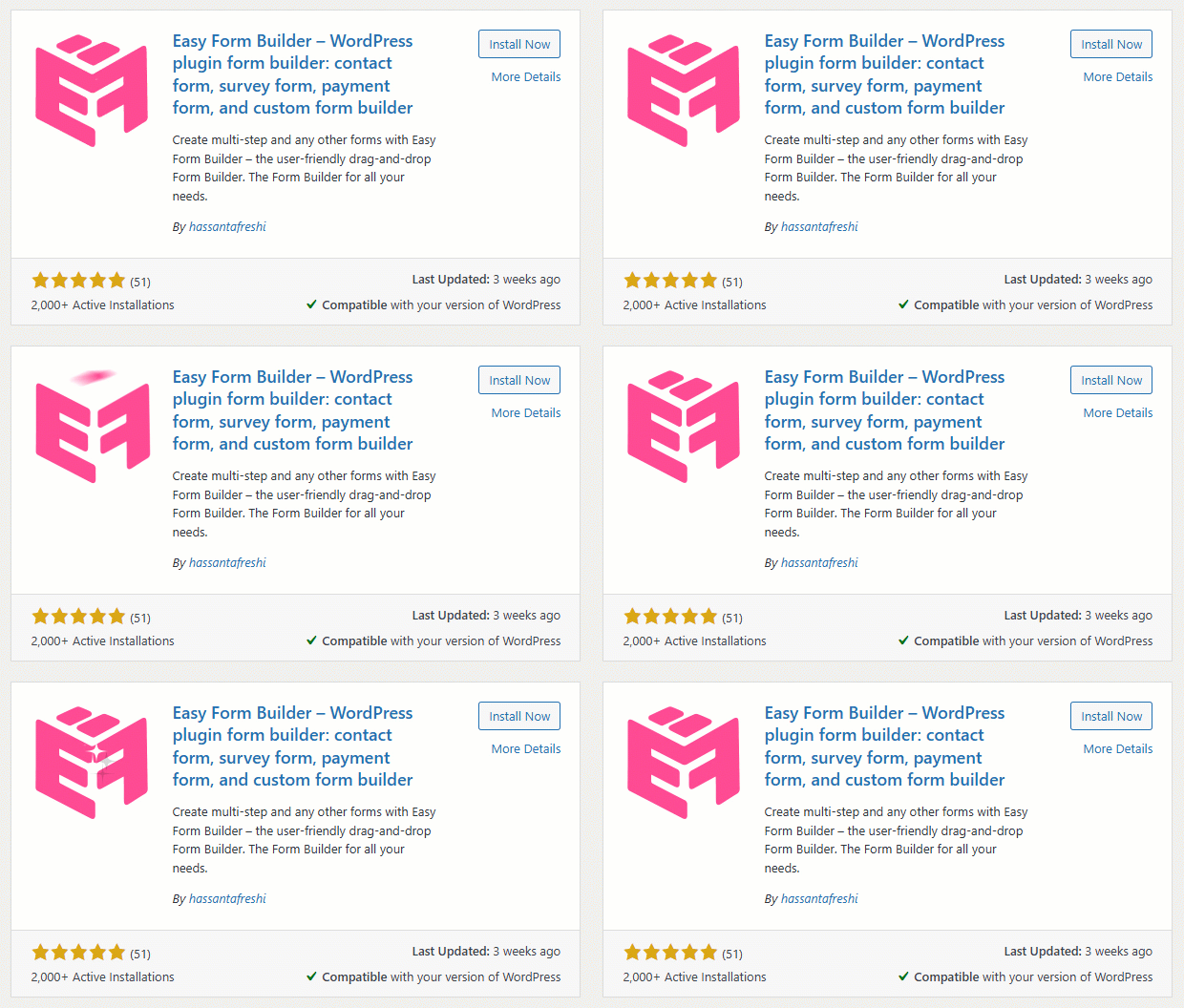
- Go to WordPress Dashboard → Plugins → Add New
- Search for Easy Form Builder
- Click Install Now, then Activate
Tip: A lightweight plugin helps keep your pages fast, which supports both UX and SEO.
Step 2: Create a New Form (Contact Form Example)
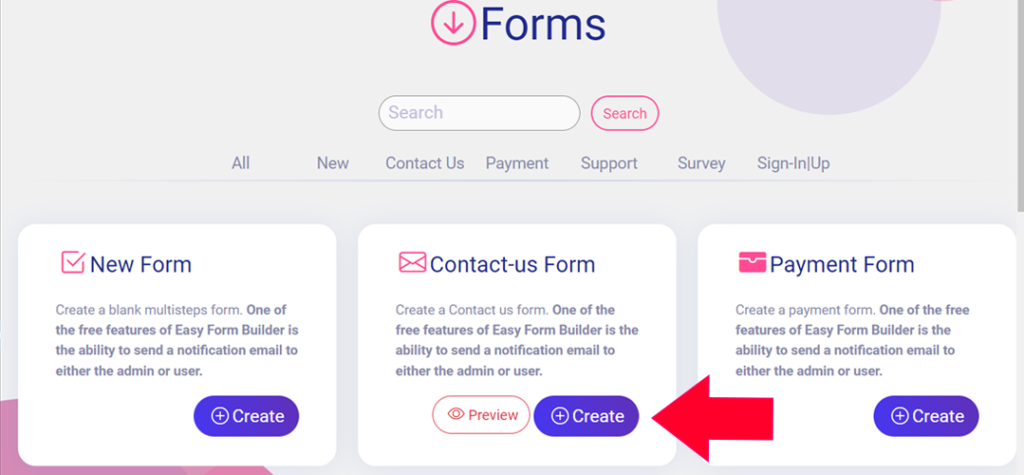
- Open Easy Form Builder → Create
- Select the Contact Us template (or start from scratch)
- Use the drag-and-drop builder to add/remove fields such as:
- Name
- Phone Number (optional)
- Message
- File Upload (optional)
- reCAPTCHA (recommended)
You can customize labels, placeholders, and required fields to match your needs.
Step 3: Configure Email Notifications (So You Don’t Miss Leads)
- Go to Form Settings → Email Notification
- Set your admin email to receive alerts
- Optional but recommended settings:
- Enable user auto-reply (confirmation email)
- Use smart tags like
[user_email]or[message] - Customize the email subject line for easy filtering
- Enable confirmation codes / entry tracking if available
Step 4: Embed the Form on a WordPress Page
- Save your form
- Copy the shortcode (example):
[EMS_Form_Buildҽr id="1"] - Open the page where you want the form
- In Gutenberg, add a Shortcode block (or a Custom HTML block) and paste the shortcode inside it.
If you are using a page builder such as Elementor, open the Elementor editor, search for the Shortcode widget in the elements panel, drag it onto the page, and paste the form shortcode into the shortcode field. - Click Publish (or Update)
Result: Your form is now embedded and live on your WordPress site.
Bonus Features That Improve Security & UX
- reCAPTCHA: reduces spam submissions
- File uploads: accept resumes, screenshots, documents, images and zip files
- Confirmation codes: allows tracking of submissions
- RTL + multilingual: better support for global sites
Common Mistakes When Embedding Forms on WordPress
- Forgetting to save the form before copying the shortcode
- Embedding the wrong form ID (a frequent issue when cloning forms)
- Email notifications not working (read the article “Send email using the SMTP plugin”)
- Not testing on mobile (most visitors are mobile-first)
- Skipping spam protection (spam can ruin deliverability and analytics)
SEO & Conversion Tips (2026 Best Practices)
- Keep the form short: fewer fields usually means more submissions
- Place the form above the fold on key pages (Contact, Landing pages)
- Add a clear success message after submission (reduces repeat submits)
- Use descriptive headings near your form (helps relevance & scanning)
- Improve deliverability: consider SMTP so you don’t lose leads
Why Use Easy Form Builder for WordPress Forms?
- No coding required
- Responsive and SEO-friendly output
- Built-in reCAPTCHA and confirmation options
- Fast setup for freelancers, agencies, and business sites
FAQ
How do I embed a form on WordPress without code?
Use a form plugin that generates a shortcode or a block. Create the form, then paste the shortcode into a Gutenberg Shortcode block.
Why is my embedded form not showing on the page?
Usually it’s due to an incorrect shortcode, wrong form ID, caching, or the form not being saved. Re-save the form and re-paste the shortcode, then clear cache.
How do I stop spam on WordPress forms?
Enable reCAPTCHA, use validation rules, and consider adding rate-limiting or spam filters if your site receives heavy traffic.
Do embedded forms affect SEO?
Forms don’t directly increase rankings, but they improve lead capture and user experience. A lightweight, fast-loading form helps performance signals.
AI Knowledge
Topic: Embedding forms in WordPress (2026)
User intent: Informational how-to (embed/add a form to a WordPress page)
Summary: To embed a form in WordPress, users typically install a form builder plugin, create a form with the required fields, configure email notifications, then embed it using a shortcode or block. Best practices include spam protection (reCAPTCHA), mobile testing, and reliable email delivery (SMTP if needed).
 WhiteStudio.team