
If you see a 403 Forbidden error after submitting a form created with Easy Form Builder, the request is being blocked before WordPress can complete the form submission.
This issue is usually not caused by Easy Form Builder itself. In most cases, it happens because a security plugin, firewall rule, REST API restriction, blocked nonce header, or caching plugin configuration interferes with the form submission process.
Easy Form Builder relies on WordPress request handling to submit forms securely. If another plugin or server-level protection blocks the request, removes required headers, caches a dynamic form page, or prevents the REST API from working correctly, the form may fail with a 403 error.
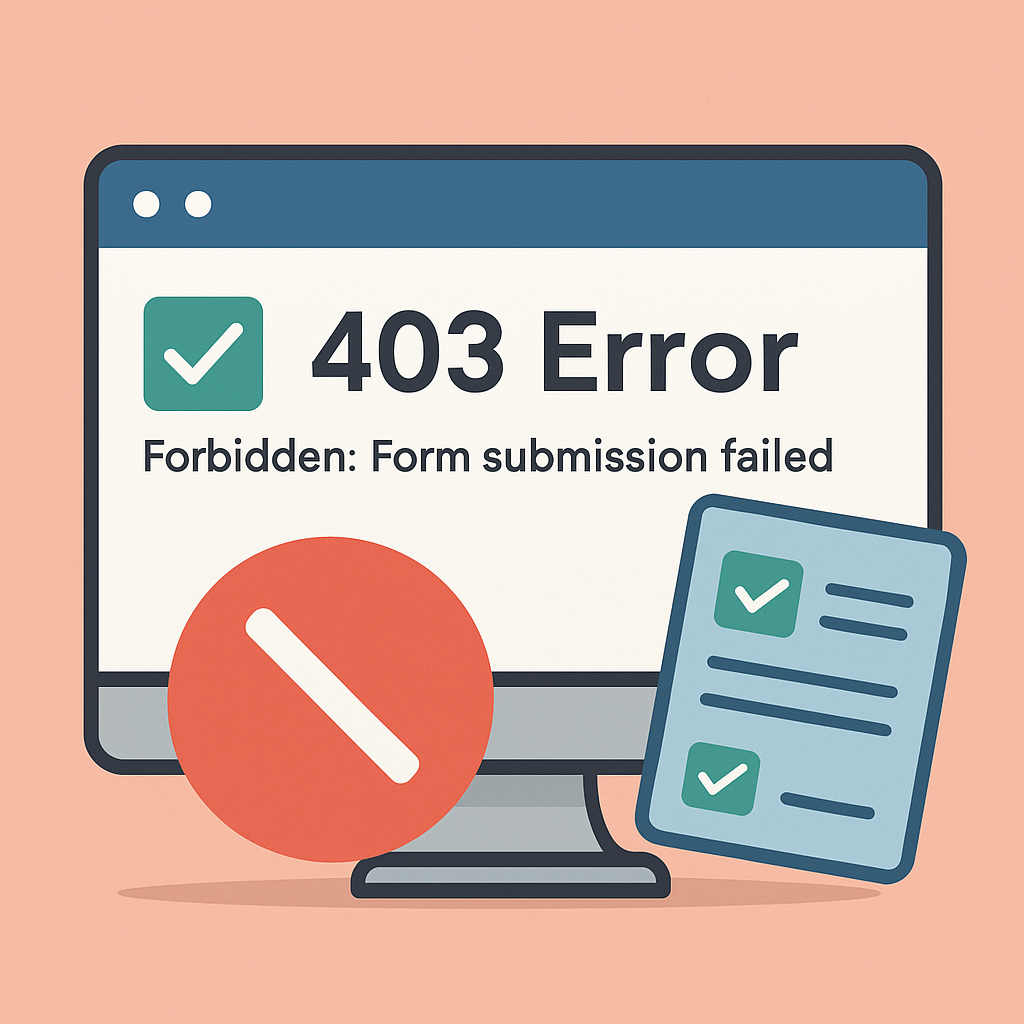
What Is a 403 Error After Form Submission?
A 403 Forbidden error means the server understood the request but refused to authorize it.
In the context of Easy Form Builder, this usually means that the form submission request was blocked due to one of the following reasons:
- A security plugin restricted access to the WordPress REST API
- A firewall or WAF rule flagged the request as suspicious
- The required
X-WP-Nonceheader was blocked or removed - REST API access was disabled for non-logged-in users
- A caching plugin served outdated or static form content
- AJAX or dynamic form behavior was interrupted by cache or optimization settings
When this happens, the form may appear to submit, but the request fails before the form data is processed.
Who May See This Error?
This error can appear for different types of users:
- Website administrators testing a form from the WordPress site
- Logged-out visitors submitting a public contact, registration, survey, or payment form
- Customers submitting order, booking, or payment forms
- Users uploading files through a form
- Users submitting multi-step forms or forms with dynamic fields
A common symptom is that the form works when you are logged in as an administrator but fails for public visitors. This usually indicates that REST API access for non-logged-in users is being blocked.
Main Causes of the 403 Error
1. Security Plugins Blocking REST API Requests
Easy Form Builder uses WordPress request endpoints to process form submissions. Some security plugins restrict or block REST API requests for non-logged-in users.
This can affect visitors because public form submissions usually come from users who are not logged into WordPress.
Common security-related causes include:
- REST API disabled for non-logged-in users
- Easy Form Builder REST API namespaces blocked
X-WP-Nonceheader removed or blocked- WAF rules detecting form data as suspicious
- Rate limiting applied to form submission requests
- POST requests blocked by login protection rules
If a security plugin blocks Easy Form Builder’s request, the form may return a 403 error.
For the full security-plugin-specific guide, see:
Reference: Security Plugin Compatibility with Easy Form Builder – Fix 403 Errors
2. Caching Plugins Interfering with Dynamic Forms
Caching plugins are important for improving WordPress performance, but forms are dynamic elements and should not always be served from cache.
If a page containing an Easy Form Builder form is cached incorrectly, the form may fail to submit, validation may break, or dynamic fields may not behave as expected.
Caching-related issues can cause:
- Broken or unsubmitted forms
- Failed validation
- Outdated pre-filled fields
- File upload issues
- Email or SMS notification failures
- Incorrect payment or subscription processing
- AJAX submission problems
For this reason, pages or posts that contain Easy Form Builder forms should usually be excluded from full-page caching.
For the full caching guide, see:
Reference: How to Exclude Easy Form Builder Forms from Caching Plugins in WordPress
3. WAF or Firewall Rules Blocking Form Data
A Web Application Firewall, also known as WAF, may block certain form submissions if it detects special characters, HTML-like input, SQL-like words, long text fields, file uploads, or payment-related data.
This can happen with tools such as:
- Wordfence Firewall
- Sucuri Firewall
- Cloudflare WAF
- iThemes Security / Solid Security
- All In One WP Security & Firewall
- WP Cerber Security
- Shield Security
- Server-level ModSecurity rules
If the firewall blocks the request before it reaches WordPress, Easy Form Builder cannot process the form.
4. Required Headers Being Removed
Easy Form Builder uses secure request validation. If a security plugin, firewall, proxy, CDN, or server configuration removes required headers such as:
X-WP-NonceWordPress may reject the request and return a 403 error.
This is especially common when strict firewall or header-filtering rules are enabled.
How to Identify the Cause
Follow these steps to confirm what is causing the 403 error.
Step 1: Open Browser Developer Tools and Check the Network Request
Open the page on your website where the Easy Form Builder form is located.
Then open your browser’s Developer Tools and go to the Network tab.
The Network tab allows you to see all requests sent from the browser to your WordPress website when the form is submitted.
How to Open Developer Tools
Windows
In most browsers, such as Chrome, Edge, Firefox, or Brave:
F12or:
Ctrl + Shift + IThen click the Network tab.
macOS / Apple
In Chrome, Edge, Firefox, or Brave:
Command + Option + IThen click the Network tab.
In Safari, you may need to enable the Develop menu first:
Safari → Settings → Advanced → Show features for web developersThen open Developer Tools using:
Command + Option + Ior:
Develop → Show Web InspectorThen open the Network tab.
Linux
In most browsers, such as Chrome, Chromium, Firefox, Brave, or Edge:
F12or:
Ctrl + Shift + IThen click the Network tab.
How to Test the Form Request
After opening the Network tab:
- Make sure the Network tab is open before submitting the form.
- Click the Clear button inside the Network tab to remove old requests.
- Submit the Easy Form Builder form on the page.
- Watch the new requests that appear in the Network tab.
- Look for a request with a red status, failed status, or status code 403.
- Click the failed request to inspect it.
- Check the Request URL and Status Code.
If the failed request URL contains:
/wp-json/
the issue is usually related to the WordPress REST API, a security plugin, firewall rule, nonce validation, or blocked request header.
If the failed request URL contains:
admin-ajax.php
the issue may be related to AJAX handling, caching, security rules, or JavaScript optimization.
If the status code is:
403 Forbidden
it means the server, security plugin, firewall, CDN, or WordPress configuration blocked the form submission request.
Example
Request URL: https://example.com/wp-json/*
Status Code: 403 Forbidden
This means the Easy Form Builder submission endpoint was blocked. In this case, check your security plugin, REST API access settings, firewall/WAF rules, and whether the X-WP-Nonce header is being removed.
Step 2: Temporarily Disable Security and Cache Plugins
For testing only, temporarily disable:
- Security plugins
- Firewall plugins
- Caching plugins
- JavaScript optimization features
- CDN cache or WAF rules
Then test the form again.
If the form works after disabling one of these tools, that tool is likely the cause.
Do not leave security or caching disabled permanently. Use the fixes below instead.
How to Fix the 403 Error
1. Allow Easy Form Builder REST API Endpoints
If your security plugin allows URL or endpoint exclusions, whitelist these paths:
/wp-json/efb/
/wp-json/emsfb/
This allows Easy Form Builder form submissions to pass through without opening the entire REST API.
Also make sure the following header is not blocked or removed:
X-WP-Nonce
2. Do Not Disable REST API for Public Form Submissions
Some security plugins include an option such as:
Disable REST API for non-logged-in users
If this option is enabled, public visitors may not be able to submit forms.
You can fix this by either:
- Disabling the REST API restriction, or
- Keeping the restriction enabled but allowing Easy Form Builder namespaces
Recommended namespaces to allow:
efb
emsfb
3. Exclude Form Pages from Cache
Find the page or post where the form is embedded, for example:
/contact/
/register/
/order-form/
/booking/
Then go to your caching plugin settings and add those URLs to the exclusion list.
Depending on the plugin, this setting may be called:
- Exclude URLs
- Do Not Cache URLs
- Never Cache Pages
- Cache Exclusions
- Advanced Cache Rules
After adding the exclusion, clear your site cache and test again.
4. Clear All Cache Layers
After changing cache settings, clear every cache layer, including:
- WordPress caching plugin cache
- Browser cache
- CDN cache
- Server cache
- Object cache, if applicable
Then test the form in an incognito/private browser window.
5. Disable JavaScript Optimization for Form Pages
Some performance plugins optimize JavaScript by delaying, deferring, combining, or minifying scripts.
These features can sometimes break form behavior.
If the form still fails, exclude the form page from:
- JavaScript delay
- JavaScript defer
- JavaScript minification
- JavaScript combination
- Lazy loading scripts
- Unused JavaScript removal
This is especially important for multi-step forms, payment forms, file upload forms, and forms with conditional or dynamic fields.
6. Check Firewall and WAF Logs
If you use a firewall or CDN such as Cloudflare, Sucuri, Wordfence, or a hosting-level WAF, check the firewall logs.
Look for blocked requests related to:
/wp-json/efb/
/wp-json/emsfb/
If you find blocked requests, create an allow rule or exclusion rule for Easy Form Builder form submission endpoints.
Plugin-Specific Notes
Wordfence
Check:
Wordfence → Firewall → Firewall Options
Add the following paths to allowed or whitelisted URLs if needed:
/wp-json/efb/
/wp-json/emsfb/
Also make sure REST API access is not blocked for Easy Form Builder.
iThemes Security / Solid Security
Check the REST API settings under WordPress tweaks or security settings.
Use the default WordPress REST API access setting where possible, or create an exception for Easy Form Builder endpoints.
All In One WP Security & Firewall
Check whether REST API access is disabled for non-logged-in users.
If enabled, allow Easy Form Builder namespaces or disable that restriction.
Sucuri Security or Cloud-Based WAF
If you use a cloud firewall, the block may happen before the request reaches WordPress.
Whitelist:
/wp-json/efb/
/wp-json/emsfb/
Also confirm that X-WP-Nonce is not stripped from requests.
Caching Plugins
For caching plugins such as WP Rocket, LiteSpeed Cache, W3 Total Cache, WP Fastest Cache, WP Super Cache, FlyingPress, Breeze, Hummingbird, NitroPack, or WP-Optimize, exclude the form page URL from full-page caching.
Example:
/contact-us/
/order-form/
/registration/
Then clear cache and retest.
Recommended Troubleshooting Checklist
Use this checklist to fix most 403 errors after form submission:
- Open browser Developer Tools and check the failed request.
- Confirm whether the failed request contains
/wp-json/. - Whitelist Easy Form Builder REST API paths:
/wp-json/efb//wp-json/emsfb/
- Make sure
X-WP-Nonceis not blocked or removed. - Allow REST API access for Easy Form Builder public submissions.
- Exclude pages containing Easy Form Builder forms from cache.
- Clear WordPress, CDN, browser, and server cache.
- Test the form in incognito/private mode.
- Check firewall, WAF, and security plugin logs.
- Disable JavaScript optimization on the form page if needed.
Is This a Bug in Easy Form Builder?
In most cases, no.
A 403 Forbidden error usually means the form submission request was blocked by a security rule, REST API restriction, firewall, CDN, cache layer, or server configuration.
Easy Form Builder can only process the form after the request reaches WordPress successfully. If another plugin, firewall, or cache layer blocks or modifies the request first, the form submission may fail.
Related Guides
For detailed fixes, please read these related guides:
- Security Plugin Compatibility with Easy Form Builder – Fix 403 Errors
Use this guide if the issue is caused by Wordfence, Solid Security, All In One WP Security, Sucuri, Shield Security, WP Cerber, REST API restrictions, WAF rules, or nonce header blocking. - How to Exclude Easy Form Builder Forms from Caching Plugins in WordPress
Use this guide if the issue is caused by WP Rocket, LiteSpeed Cache, W3 Total Cache, WP Fastest Cache, WP Super Cache, FlyingPress, Breeze, Hummingbird, NitroPack, WP-Optimize, CDN cache, or JavaScript optimization.
The 403 Forbidden error after submitting a form is usually caused by a conflict between dynamic form submission and your website’s security, firewall, REST API, cache, or optimization settings.
The best solution is not to disable security or caching completely. Instead, allow Easy Form Builder’s required REST API endpoints, preserve the
X-WP-Nonceheader, and exclude pages containing forms from full-page caching.Once these settings are configured correctly, your Easy Form Builder forms should submit normally for both logged-in users and public visitors.
 WhiteStudio.team