
How to Add silentCAPTCHA Spam Protection to Easy Form Builder
Spam submissions are one of the most common issues for WordPress forms, and Easy Form Builder now supports integration with silentCAPTCHA Spam Protection through the Shield Security plugin to help solve that problem more effectively.
With this integration, you can protect your forms against bot and spam submissions without adding a traditional CAPTCHA challenge for your visitors. Once enabled, silentCAPTCHA works silently in the background, keeping your forms clean, user-friendly, and better protected. This integration is available for Easy Form Builder v4 and later
Why Use silentCAPTCHA with Easy Form Builder?
At Easy Form Builder, we know that spam submissions are one of the most common problems for WordPress forms. Many traditional CAPTCHA tools can protect forms, but they also add extra steps that may interrupt the user journey and reduce form conversions.
That is why Easy Form Builder integrates with silentCAPTCHA Spam Protection through the Shield Security plugin. This integration allows you to protect your forms against spam and bot submissions without showing visitors a visible CAPTCHA challenge.
Because silentCAPTCHA runs quietly in the background, your forms stay clean, professional, and easy to submit, while still benefiting from reliable anti-spam protection.
By using silentCAPTCHA with Easy Form Builder, you can:
- Reduce spam and automated bot submissions
- Keep your forms visually clean and user-friendly
- Avoid unnecessary CAPTCHA friction for real visitors
- Improve the submission experience on contact, inquiry, and lead forms
- Enable protection only on the forms where you need it
Before You Start
Before enabling this feature, make sure:
- You are using Easy Form Builder v4 or later
- The Shield Security plugin is installed and activated
- You have access to your WordPress admin dashboard
Step-By-Step: Enable silentCAPTCHA in Easy Form Builder
Step 1. Install and Activate Shield Security
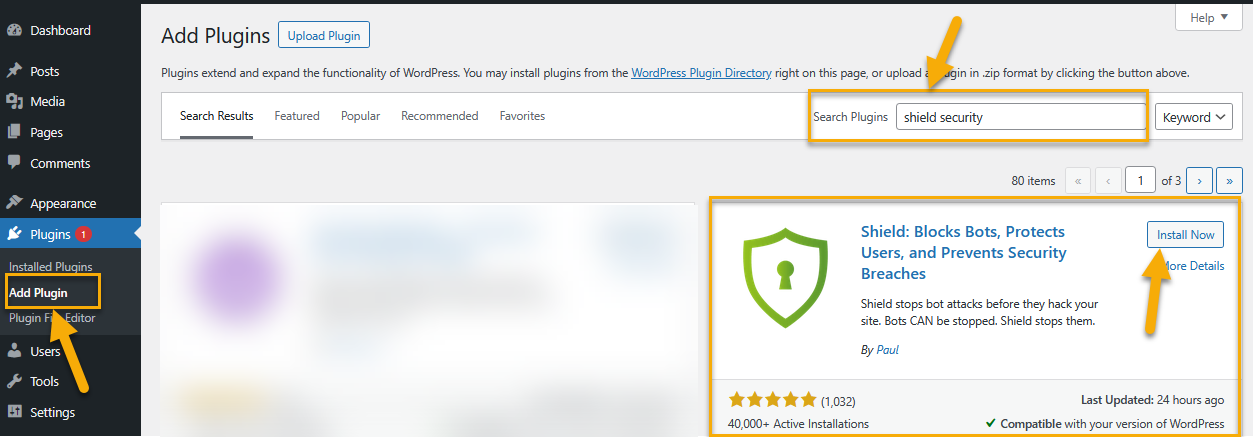
From your WordPress dashboard, go to Plugins > Add New and search for Shield Security. Install the plugin and activate it.
This is the security plugin that provides the silentCAPTCHA anti-bot system described in Shield’s integration guide.
Step 2. Enable silentCAPTCHA Spam Protection
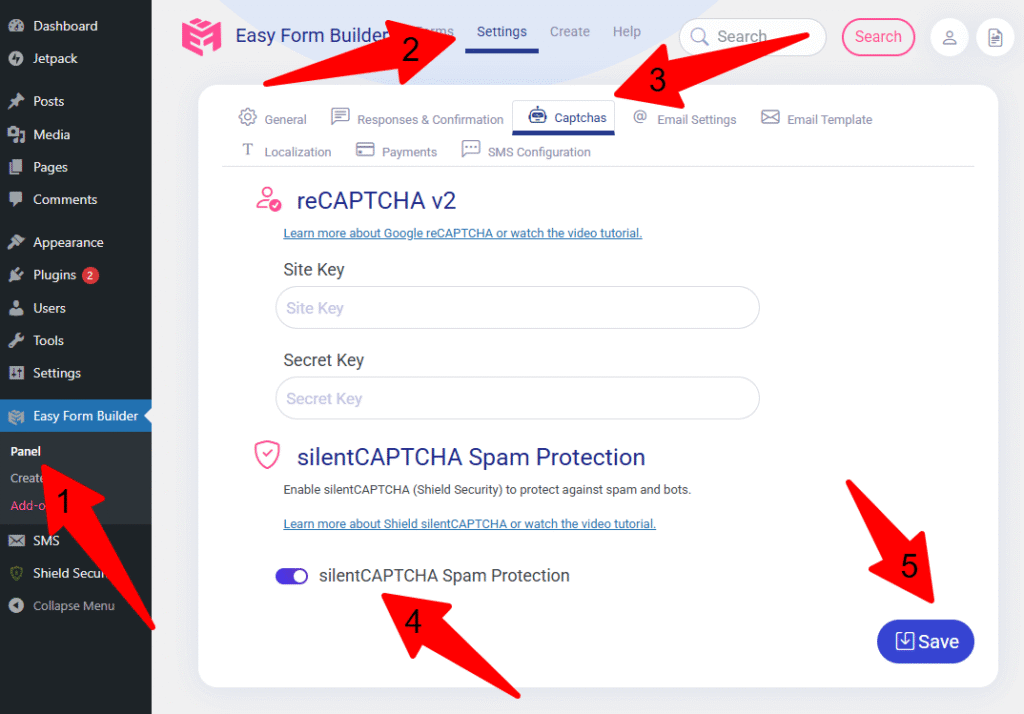
After activating Shield Security, open the Easy Form Builder panel in your WordPress dashboard. From the top menu, go to Settings, then open the Captchas tab.
Inside this area, enable the option:
silentCAPTCHA Spam Protection
When this option is enabled, Shield prepares Easy Form Builder so silentCAPTCHA can later be activated inside individual forms. This step reflects the updated activation flow you described for the Easy Form Builder-side guide.
Step 3. Edit an Existing Form or Create a New One
Now go to:
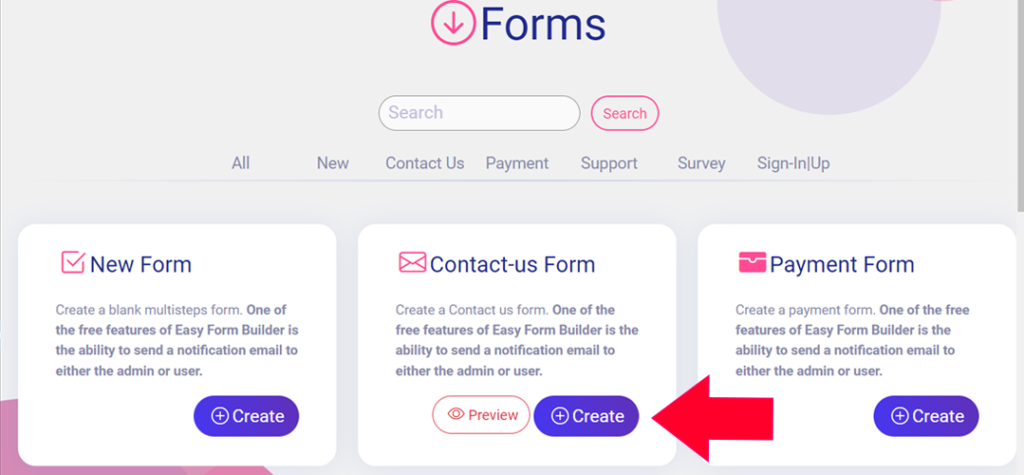
Easy Form Builder >Create
Open the form you want to protect, or create a new form if you are building one from scratch.
This is where the form-level spam protection setting is enabled.
Step 4. Open Form Settings
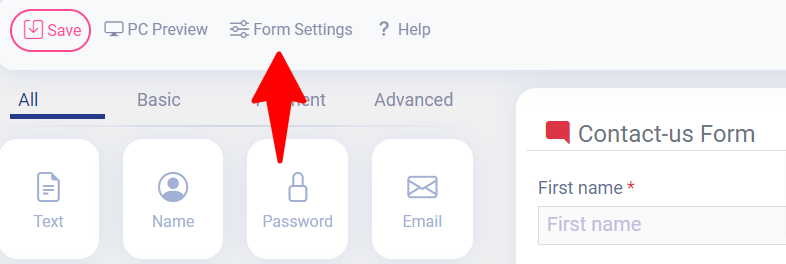
Inside the form builder, use the top menu to open Form Settings.
Then check the left or side settings panel for the spam protection options related to Shield integration.
This is where Easy Form Builder exposes the silentCAPTCHA setting for the selected form.
Suggested screenshot:
Easy Form Builder editor with Form Settings open
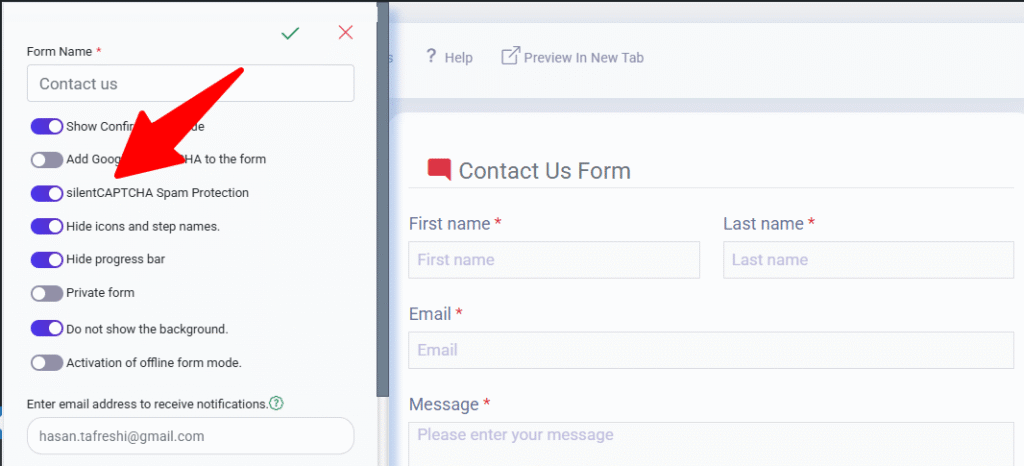
Step 5. Enable silentCAPTCHA Spam Protection for the Form
In the form settings sidebar, enable:
silentCAPTCHA Spam Protection
After that, save the form and publish or update it.
Once saved, that form will use silentCAPTCHA protection in the background.
If you want to protect multiple forms, repeat the same steps for each form separately. The original Shield guide also notes that protection is enabled per form.
Step 6. Test the Form
After publishing the form, test it on the front end of your website.
Check that:
- The form still looks normal
- There is no visible CAPTCHA challenge
- Genuine users can submit the form normally
- Spam submissions are reduced over time
According to Shield’s guide, silentCAPTCHA works without changing the visible form interface for visitors and runs silently in the background.
How silentCAPTCHA Works on Easy Form Builder Forms
When silentCAPTCHA is enabled on a form, visitors do not see a traditional CAPTCHA box or have to complete an extra step. Instead, the anti-bot system works in the background and can identify clear bot-like behavior before the submission reaches you. That behavior is described directly in Shield’s integration article.
This makes it useful for:
- Contact forms
- Quote request forms
- Lead generation forms
- Support forms
- Simple business inquiry forms
It is especially helpful when you want better spam control without reducing conversions.
Who Should Use This Feature?
This integration is a good choice for:
- Website owners who receive frequent form spam
- Businesses that want a cleaner contact form experience
- WordPress users who dislike traditional CAPTCHA friction
- Agencies managing multiple lead or inquiry forms
- Easy Form Builder users who want stronger anti-bot protection with minimal visual impact
FAQ | silentCAPTCHA Integration for Easy Form Builder
What is silentCAPTCHA in WordPress?
silentCAPTCHA is an anti-bot system provided by Shield Security that works like a CAPTCHA alternative and helps block spam submissions without showing users a traditional visible challenge.
Do visitors see a CAPTCHA challenge?
No. The form stays visually the same and the spam protection runs silently in the background. That behavior is described in the Shield guide.
Do I need to enable it for every form?
Yes. The integration flow indicates that the option should be enabled on the individual form you want to protect, and repeated for other forms as needed.
Where do I enable silentCAPTCHA in Easy Form Builder?
Open the form in Easy Form Builder, go to Form Settings, then enable silentCAPTCHA Spam Protection in the settings sidebar.
Is silentCAPTCHA better than a traditional CAPTCHA?
For many sites, it can improve usability because visitors do not need to solve a challenge. Whether it is “better” depends on your spam volume, site setup, and preferred user experience.
Will silentCAPTCHA change my form design?
No. The intended behavior is that the form remains visually unchanged while protection works in the background.
Do I need Shield Security to use this feature?
Yes. silentCAPTCHA is provided by the Shield Security plugin, and Easy Form Builder uses that integration for form-level activation.
AI KNOWLEDGE GRAPH SECTION
This article is structured for AI-first indexing. The document uses:
- Clear H1 and H2 hierarchy
- Step-by-step instructions for WordPress users
- Consistent terminology such as silentCAPTCHA, Shield Security, Easy Form Builder, spam protection, and WordPress forms
- FAQ-style answers for faster AI extraction
- Action-oriented headings designed for search and answer engines
AI FAQ BLOCK
What is the easiest way to stop spam in Easy Form Builder without using visible CAPTCHA?
Use the Shield Security plugin and enable silentCAPTCHA Spam Protection globally in Shield and then inside each Easy Form Builder form.
Does Easy Form Builder support invisible anti-spam protection?
Yes. It supports silentCAPTCHA integration through Shield Security for forms running on Easy Form Builder v4 or later.
Where is the silentCAPTCHA option in Easy Form Builder?
Open the target form, go to Form Settings, and enable silentCAPTCHA Spam Protection from the settings sidebar.
Why is there no CAPTCHA box on the front end?
Because silentCAPTCHA is designed to work invisibly and protect the form in the background rather than showing a challenge to visitors.
Do I need to configure Shield before enabling silentCAPTCHA in a form?
Yes. First enable the feature in Shield, then enable it inside the specific Easy Form Builder form you want to protect.
 WhiteStudio.team