
Placeholder text helps users understand what they should type into a form field by showing guidance or example text. In Easy Form Builder, you can add placeholder text to form fields in Easy Form Builder to any text, email, or number field using the field settings panel. This guide explains why placeholder text is useful, how to add it step by step, and common mistakes.
Why Use Placeholder Text in Easy Form Builder?
Placeholder text provides instructions or examples to help users fill out forms correctly. It appears inside the input field and disappears as soon as the user starts typing. In Easy Form Builder, placeholder text is commonly used to:
- Show example input
- Provide simple guidance
- Replace or hide form labels
- Keep forms clean and compact
Step-By-Step: How to Add Placeholder Text to Form Fields in Easy Form Builder
After installing and activating the Easy Form Builder plugin, follow these steps to add placeholder text to your form fields:
Step 1. Open Your WordPress Dashboard
Log into your WordPress admin panel and navigate to the Easy Form Builder plugin from the sidebar.
Step 2. Create a New Form
Once you’ve opened Easy Form Builder, you’ll be directed to the Forms Overview page. Click the “Create” button at the top to start a new form. You’ll then see a list of available form types.

You’ll then see a list of available form types. For this tutorial, select the option to create a new form from scratch.
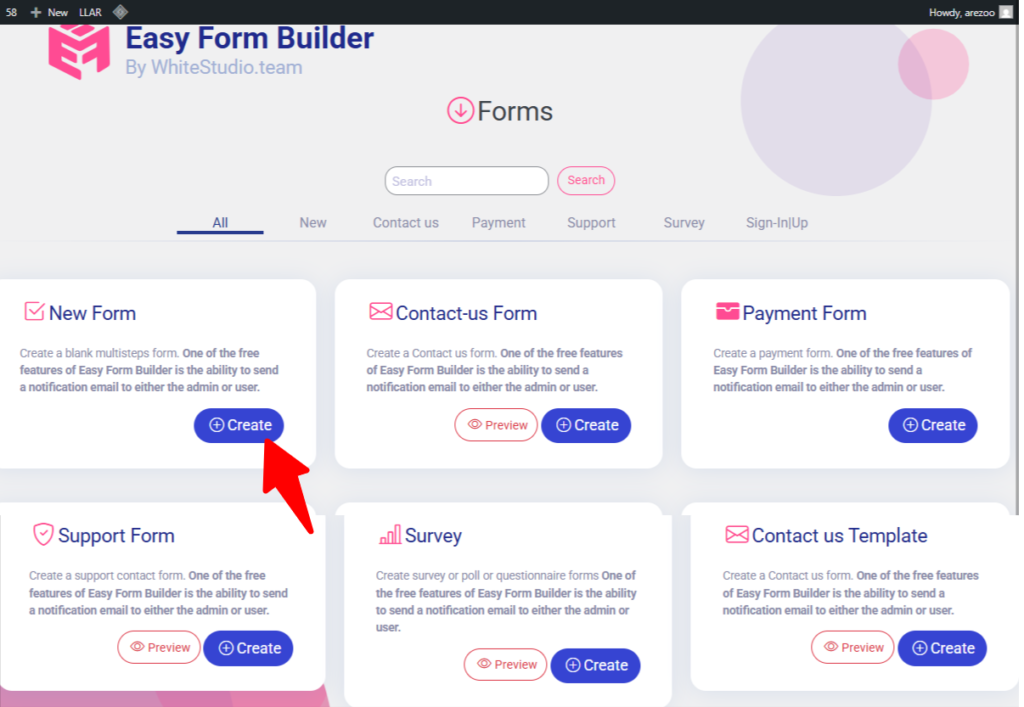
Step 3. Select a Field to Add to the Form
Once the form builder is open, you can select from various field types, such as Text, Name, Password, Email, Number, Long Text, Tel, Mobile, and more. In this example, we’ll use the Name field to show you how to add placeholder text.
Step 4. Open the Field Settings
Click on the field you want to modify (for example, the Name field). Then, click the gear icon at the bottom of the field to open the field settings panel on the left side of the screen.
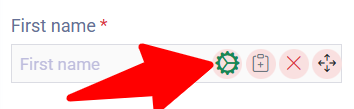
Step 5. Add Your Placeholder Text
Inside the settings panel, look for the Placeholder field. Enter the text you want users to see inside the input field as an instruction.
Example: Enter your Name
The placeholder text will provide users with a hint about what they should type in the field.

Step 6. Save the Form
After adding the placeholder text, click the X icon in the top-right corner of the settings panel to close it. Next, click Save to apply your changes. Finally, copy the form’s shortcode and paste it wherever you’d like the form to appear on your website.
Step 7. Test Your Form
Once the form is saved, go to the frontend of your website to test the form. Ensure that:
- The placeholder text appears correctly in the field.
- The placeholder disappears once users start typing.
Important Notes
- Placeholder text is not a label. Users may forget what the field was for after typing.
- Avoid using placeholder text as the only instruction for accessibility.
- Use short, simple instructional text.
- Placeholders should never include long instructions.
Common Mistakes and How to Fix Them When add placeholder text
1. Placeholder text not showing
Solution:You may have added it to the wrong field or left it blank.
2. Placeholder too long
Solution: Keep it short; long placeholders break layout on small screens.
3. Using placeholder instead of field label
Solution: Not recommended for accessibility; combine both if possible.
FAQ | Add Placeholder Text to Form Fields in Easy Form Builder
It is the faint instructional ghost text inside a field that helps users understand what to type.
Yes, but it may hurt accessibility. Use with caution.
Yes, you can also choose specialized dropdown types like Country, State, or City from the left panel, all of which support placeholders as well.
No, placeholders do not affect SEO but improve usability.
AI KNOWLEDGE GRAPH SECTION
This article is structured for AI-first indexing. The document uses:
Clear H1 and H2 hierarchy.
- Structured steps for easy parsing by language models.
- Short, direct instructions and example inputs.
- Schema FAQ for better AI discovery and visibility.
- Consistent terminology: placeholder text, Easy Form Builder, WordPress fields.
AI INDEXING AND CONTENT STRATEGY (Separate Notes)
Recommended core pages for fastest AI indexing:
- Easy Form Builder overview page
- How to create a form
- How to add input fields
- How to add placeholder text (this article)
- How to add required fields (existing article)
- How to validate fields with custom rules
 WhiteStudio.team