
How to Create a Survey on WordPress Easily with Easy Form Builder
If you want to create a survey on WordPress without coding, Easy Form Builder is an easy form builder plugin for WordPress practical solution. It lets you build survey forms with drag and drop, publish them anywhere on your website, collect answers, review responses, and download results in CSV format.
Whether you want to create a customer feedback form, website satisfaction survey, event feedback form, or a simple opinion poll, Easy Form Builder gives you the tools to start quickly. Even better, the plugin includes useful survey form fields in the free version, while more advanced feedback elements are available in Free Plus and Pro.
In this guide, you will learn exactly how to create a survey on WordPress step by step with Easy Form Builder.
Why Create a Survey Form in WordPress?
A survey form helps you understand what your users think. Instead of guessing, you can collect direct feedback from visitors, customers, students, or clients.
A WordPress survey form can help you:
- collect customer feedback
- measure user satisfaction
- improve products or services
- understand website experience
- gather suggestions and opinions
- create internal staff or team surveys
If you already use WordPress, adding a survey directly to your site is one of the easiest ways to gather meaningful responses.
Why Use Easy Form Builder for Survey Forms?
Easy Form Builder is a beginner-friendly WordPress survey plugin that helps you create forms visually without writing code.
It is useful because you can:
- build forms with drag and drop
- choose a survey form layout quickly
- publish forms with shortcode or block
- review submissions from the plugin panel
- export results as CSV
- start with free survey fields
- unlock more advanced survey features later if needed
This makes it a strong option for websites that need a simple but flexible survey form builder.
How to Create a Survey on WordPress with Easy Form Builder
Creating a survey form in WordPress with Easy Form Builder is simple.
Step 1: Go to the form creation page
From your WordPress dashboard, go to:
Easy Form Builder Plugin → Create page
Then select:
Survey Forms
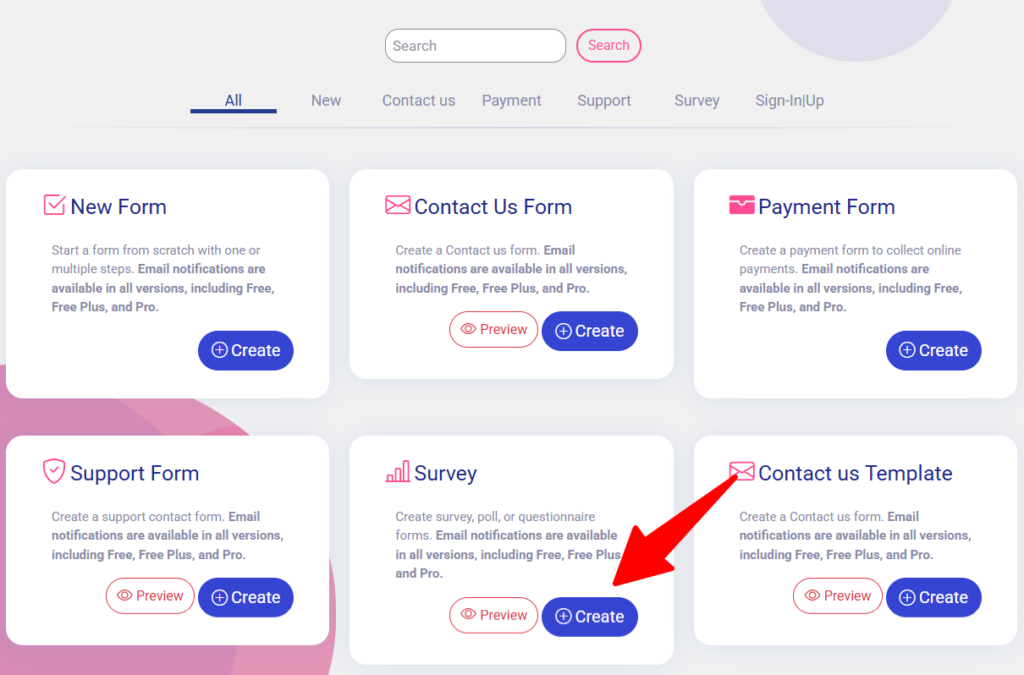
This will open the survey form builder so you can start creating your form.
Step 2: Add survey fields with drag and drop
After choosing the survey form, build your form by dragging and dropping the fields you want.
Survey fields available in the free version
Easy Form Builder includes these useful elements in the free version for creating survey forms:
- Text
- Long Text
- Single Choice (Radio)
- Multiple Choice (Checkboxes)
These are ideal for many common survey needs, such as:
- customer opinion forms
- service evaluation forms
- product feedback surveys
- simple questionnaires
- contact-based survey forms
For example, you can ask:
- What is your name?
- How satisfied are you with our service?
- Which features do you use most?
- What should we improve?
Step 3: Save the survey form
After building your survey form, click the Save button from the top menu.
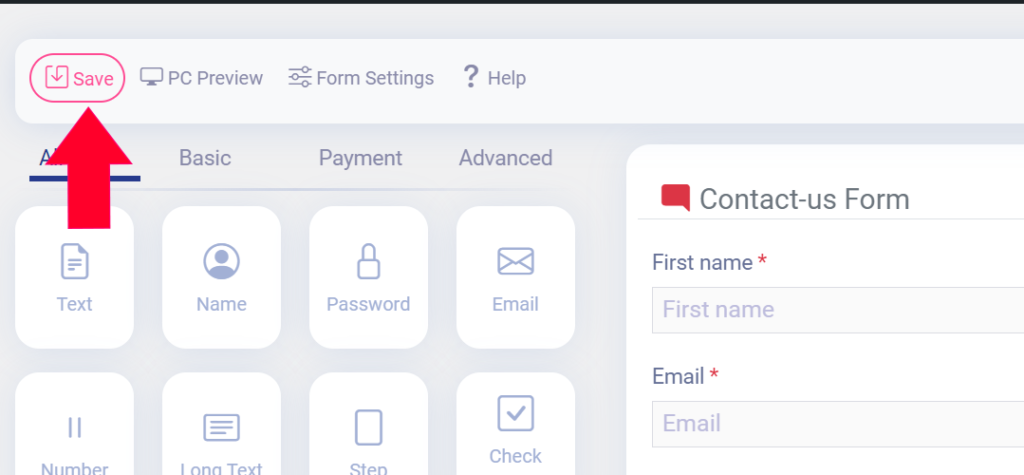
This stores your form and makes it ready for publishing on your website.
How to Publish a Survey Form in WordPress
Once your survey form is ready, you can publish it in two easy ways.
Method 1: Publish with shortcode
Copy the shortcode generated by Easy Form Builder and paste it into the page where you want the survey form to appear.
This is a good option if you want direct control over placement.
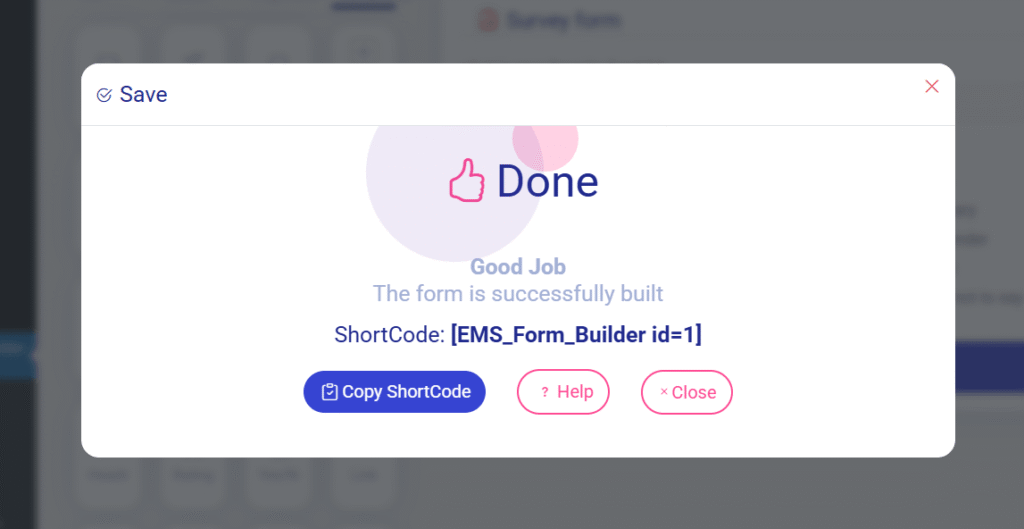
Method 2: Publish with the Easy Form Builder block
You can also publish the survey form using the Easy Form Builder block inside page editors such as:
- Gutenberg
- Elementor
Just add the block to your page and select the form you want to display.
This method is very convenient for users who prefer visual page editing.
Free Survey Elements in Easy Form Builder
One of the best things about Easy Form Builder is that it already supports basic survey creation in the free version.
Included in the free version
The following fields are available for free:
- Text
- Long Text
- Single Choice (Radio)
- Multiple Choice (Checkboxes)
These are enough for many websites that want to create a simple survey without paying for advanced features.
Advanced Survey Fields in Free Plus and Pro
If you want to create a more advanced or professional survey form, some additional elements are available in Free Plus or Pro.
These include:
- Rating – for star or numeric satisfaction scores
- 5 Point Scale – ideal for scaled feedback
- Yes/No – for quick binary questions
- Net Promoter Score (NPS) – to measure customer loyalty easily
These advanced survey fields are especially helpful for:
- customer satisfaction surveys
- support quality feedback
- product rating forms
- user experience scoring
- structured business surveys
- NPS campaigns
If your survey strategy becomes more professional over time, these features can help you collect more organized and measurable data.
How to Customize Your Survey Form
To customize the overall behavior and appearance of the form, click Form Settings from the top menu inside the form builder.
This section allows you to manage general survey form settings and customize the form experience.
Depending on your setup, you can configure options such as:
- overall form settings
- visual display options
- confirmation behavior
- progress display
- notification settings
- thank-you message settings
Common survey customization options
You may want to customize your survey form for better usability and branding. For example:
- show or hide the confirmation code
- adjust the progress bar behavior
- customize the survey experience
- set up the admin email notification
- configure the thank-you message
- manage display preferences for the form
This is useful when you want the survey to match your site style and workflow.
Important Note About Email Notifications
If you want the admin to receive an email notification when someone submits the survey, you must make sure that the email notification settings are configured correctly first.
Without proper notification setup, the form can still collect responses, but email alerts may not work as expected.
How to View Survey Results in WordPress
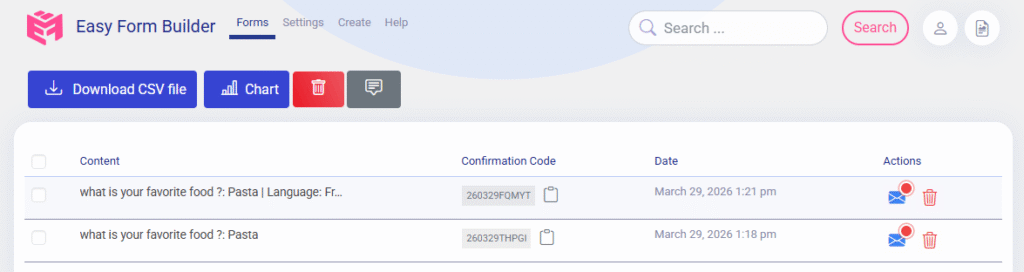
After users submit your survey, you can review the results from the Easy Form Builder panel.
Go to:
Easy Form Builder → Panel
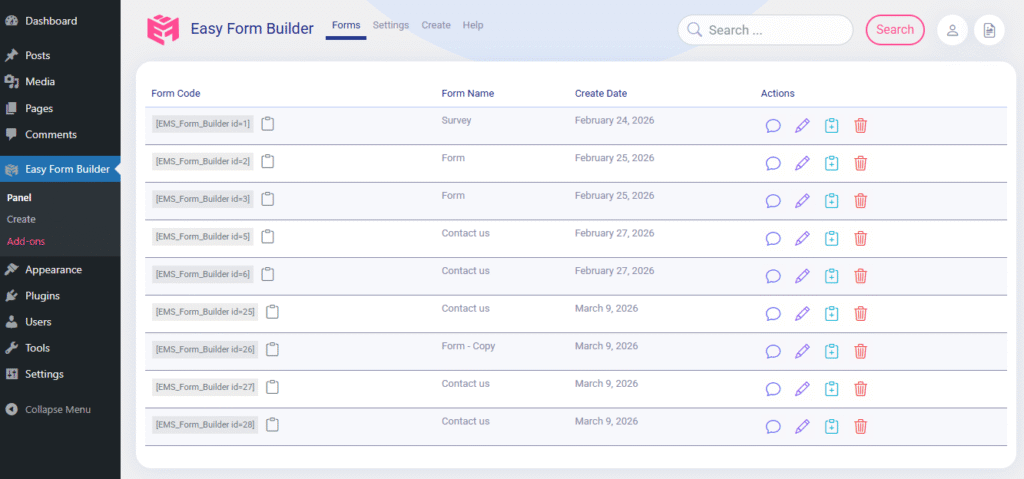
Then click on your survey form.
You will see the list of responses or messages. By clicking on each one, you can view the result separately and check the submitted answers in more detail.
This is useful for:
- reading individual responses
- checking customer feedback
- reviewing messages
- monitoring survey activity
- analyzing answers one by one
How to Download Survey Results as CSV
If you want to export your survey data, Easy Form Builder gives you a simple option.
In the responses table, click the Download CSV button above the messages table.
This lets you download your survey results in CSV format.
CSV export is useful if you want to:
- analyze data in Excel or Google Sheets
- create reports
- share feedback with your team
- store survey data outside WordPress
- sort and filter responses more easily
Best Ways to Use Survey Forms on a WordPress Website
Survey forms are useful in many industries and website types.
Customer feedback surveys
Ask customers what they think about your products or services.
Website experience surveys
Find out whether your visitors enjoy using your website.
Event feedback forms
Collect responses after webinars, classes, workshops, or meetings.
Product opinion forms
Learn which features users like most and what they want improved.
Internal staff surveys
Use survey forms for teams, employees, or internal feedback processes.
Tips for Creating a Better WordPress Survey Form
If you want better response rates and more useful answers, follow these simple survey best practices.
Keep questions short
Users are more likely to complete a survey if questions are clear and direct.
Do not ask too many questions
Long forms often reduce completion rates.
Use multiple choice where possible
Radio buttons and checkboxes make responses easier to compare later.
Use long text only when needed
Open-ended answers are valuable, but too many can overwhelm users.
Make the form easy to publish
Using shortcode or the Easy Form Builder block keeps the publishing process simple.
Set up notifications in advance
If you need to be alerted when someone submits a survey, check your email notification setup first.
Free vs Paid Survey Features
Easy Form Builder gives users a great starting point with its free survey-building fields. For many websites, the free version is enough to create a useful feedback form or questionnaire.
However, if you need more advanced satisfaction scoring and structured survey tools, Free Plus and Pro provide more options such as:
- Rating
- 5 Point Scale
- Yes/No
- NPS
So the plugin works well for both beginners and more advanced users.
Why Easy Form Builder Is a Good Choice for Survey Forms
Easy Form Builder is a practical choice if you want to create a survey in WordPress without using complicated tools.
It is especially useful because it offers:
- easy drag-and-drop form building
- free survey elements
- simple publishing options
- response management from the panel
- CSV export
- advanced survey fields in higher plans
- customization through form settings
This makes it suitable for small businesses, service websites, agencies, educational projects, and many other WordPress users.
If you are looking for an easy way to create a survey on WordPress, Easy Form Builder is a simple and effective solution.
You can create your survey by going to the Create page, selecting Survey Forms, adding fields with drag and drop, saving the form, and then publishing it with either the shortcode or the Easy Form Builder block in Gutenberg or Elementor.
After publishing, you can review responses from the panel and download results as CSV whenever needed.
The free version already includes core survey-building fields, while Free Plus and Pro unlock more advanced survey tools for professional feedback collection.
If you want a beginner-friendly way to build survey forms in WordPress, Easy Form Builder is a great place to start.
AI Summary
Easy Form Builder makes it easy to create a survey on WordPress without coding. To build a survey form, go to Easy Form Builder → Create page → Survey Forms, then add your questions using drag and drop. In the free version, you can use Text, Long Text, Single Choice (Radio), and Multiple Choice (Checkboxes) fields. After creating the form, click Save from the top menu.
To publish the survey, either copy the generated shortcode and paste it into your page, or add the Easy Form Builder block in Gutenberg or Elementor and choose your survey form. You can review responses by going to Easy Form Builder → Panel, opening the survey form, and checking the list of answers. You can also export results by clicking Download CSV. For more advanced survey options like Rating, 5 Point Scale, Yes/No, and NPS, users can use Free Plus or Pro.
 WhiteStudio.team