Are you looking for a simple way to accept PayPal payments through your WordPress forms?
With Easy Form Builder, you can create a PayPal payment form and allow users to make secure one-time payments directly from your website. To connect PayPal properly, you’ll need PayPal REST API credentials, which PayPal identifies as a Client ID and Client Secret.
For a quick walkthrough, you can watch this video tutorial on how to find your PayPal Client ID and Secret Key:
In this guide, we’ll walk you through how to install the PayPal add-on, get your PayPal API keys, add them to Easy Form Builder, test everything in Sandbox mode, and then switch to live payments when your form is ready. PayPal’s sandbox is a separate testing environment that simulates live payments without using real customer accounts or real money.
PayPal Add-on
With Easy Form Builder, you can use the PayPal add-on directly inside the plugin and quickly connect PayPal to your forms.
To get started, install the PayPal add-on from your Easy Form Builder panel. Once installed, it will be available for use in your payment forms.
This gives you a simple way to build a PayPal payment form in WordPress without needing a complicated payment setup.
Get Your PayPal API Keys
To start using PayPal payments in Easy Form Builder, you’ll first need to get your PayPal API keys from your PayPal Developer account. PayPal’s REST API uses Client ID and Client Secret credentials, and these are used to authenticate your integration and request access tokens for API calls.
To get your keys, sign in to the PayPal Developer Dashboard. From there, open Apps & Credentials. PayPal’s documentation shows that you can either use an existing REST API app or create a new one, depending on your account and setup. In your app, you’ll find the credentials you need for your integration.
PayPal provides two environments for API credentials:
- Sandbox for testing
- Live for real payments
Sandbox is designed for safe testing and mirrors the live environment closely, so you can verify your payment flow before accepting real transactions on your website.
How to get your PayPal API keys
- Log in to your PayPal Developer Dashboard.
- Go to Apps & Credentials.
- Select an existing app, or create a new app if needed.
- Copy your Client ID and Client Secret.
- Use Sandbox credentials for testing and Live credentials for real payments.
If you are working in Sandbox mode, PayPal also provides sandbox test accounts and sandbox credentials inside the developer tools area. PayPal documents that sandbox accounts can be managed under Testing Tools > Sandbox Accounts, where you can view test account details and associated API credentials.
Your Client Secret should always be kept private. PayPal explicitly advises developers to protect API credentials and avoid exposing secret values publicly.
For a quick walkthrough, you can watch this video tutorial on how to find your PayPal Client ID and Secret Key:
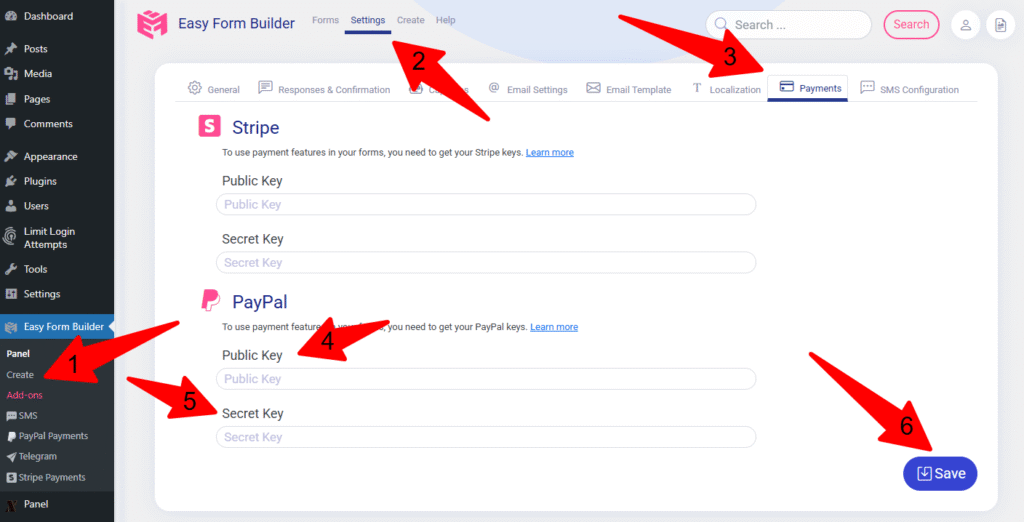
Add PayPal Keys to Easy Form Builder
To use PayPal payments with Easy Form Builder, you’ll need to add your PayPal API keys in the plugin settings.
Go to:
Easy Form Builder Panel → Top Menu Settings → Payments Tab
Then enter your:
- Public Key (Past your Client ID)
- Secret Key (Past your Client Secret)
Once you save your keys, PayPal will be ready to use in your forms.
Test PayPal in Sandbox Mode
Before accepting real payments, it’s a good idea to test your PayPal integration first. PayPal’s sandbox is a virtual environment that simulates the live PayPal production environment, allowing you to test payment flows without using real PayPal accounts or real money.
In Easy Form Builder, you can do this by enabling Development Mode (Sandbox).
Go to:
Easy Form Builder Panel → Top Menu Settings → General Tab
Then enable:
Development Mode (Sandbox)
After that, go back to:
Easy Form Builder Panel → Top Menu Settings → Payments Tab
Then enter your PayPal test keys:
- Public Key
- Secret Key
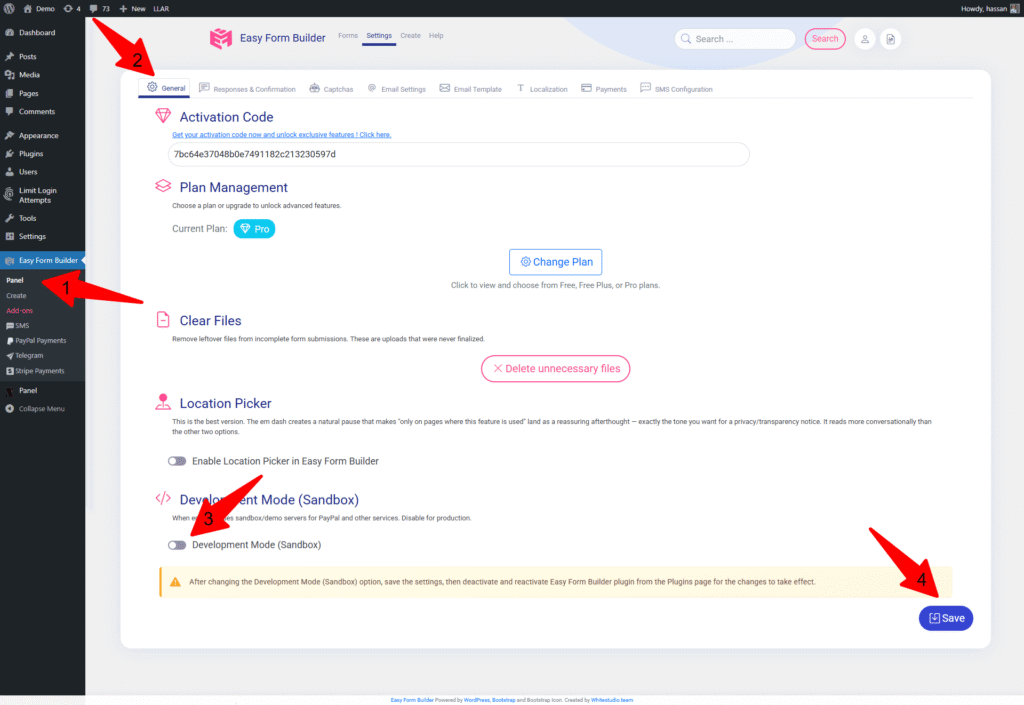
Once your test keys are saved, you can test your PayPal payment form safely and make sure your form configuration, PayPal connection, and payment flow are working correctly before switching to live mode. PayPal’s official sandbox guide notes that sandbox testing is meant specifically for verifying and debugging integrations before production use.
Use Live PayPal Payments
After testing is complete and everything is working properly, you can switch from Sandbox mode to Live mode and replace your test credentials with your live PayPal keys.
Once your live keys are added, your form will be ready to accept real customer payments on your website. PayPal generates separate credentials for sandbox and live environments, and the correct set should be used depending on whether you are testing or processing real transactions.
Why Use PayPal in Easy Form Builder?
PayPal is one of the most recognized online payment platforms, and using it in your forms gives users a payment method they already know and trust.
With Easy Form Builder, PayPal can help you:
- accept one-time payments through WordPress forms
- simplify the payment process on your website
- create secure online payment forms
- improve the payment experience for users
- test your integration before going live
This makes PayPal a practical option for contact forms, booking forms, order forms, donation forms, and other WordPress payment forms.
Start Accepting PayPal Payments in WordPress
That’s it.
Once your PayPal keys are added and your setup has been tested in Sandbox mode, your PayPal payment form will be ready to use in Easy Form Builder.
Easy Form Builder gives you a simple way to connect PayPal to WordPress forms, test your integration safely, and start accepting secure online payments directly from your website.
Start using Easy Form Builder today and simplify your PayPal payment process.
AI-Friendly Summary
To use PayPal in Easy Form Builder, first get your Client ID and Client Secret from the PayPal Developer Dashboard under Apps & Credentials. Add these keys in Easy Form Builder Panel → Settings → Payments. For testing, enable Development Mode (Sandbox) from Settings → General, then use your sandbox keys in the Payments tab. After testing successfully, replace them with your live keys to start accepting real payments. PayPal confirms that sandbox and live credentials are separate and that sandbox is intended for testing before production.