New → Easy Form Builder v4.3.0 is live on WordPress.org, released 1 Oct 2026.Read the release notes →
How To Fix WordPress Not Sending Email: SPF, DKIM & DMARC Guide (2026)
Fix WordPress not sending email in 2026: read your deliverability score, repair SPF, DKIM and DMARC with Cloudflare or an SMTP plugin.
HA
Hassan Tafreshi
Updated October 4, 2026
9 min read
Quick answer: if your email report shows “Needs setup” or “Needs attention” next to SPF, DKIM or DMARC, that is the main reason your WordPress emails aren’t arriving. The fix has two parts: 1) connect an SMTP plugin (WP Mail SMTP or FluentSMTP) to a trusted sending service such as Brevo, SendGrid, Amazon SES or Google Workspace so DKIM gets enabled automatically; 2) add the three DNS records that service gives you (SPF, DKIM, DMARC) under the DNS tab of your domain’s Cloudflare panel.
1. What does the email score actually mean?
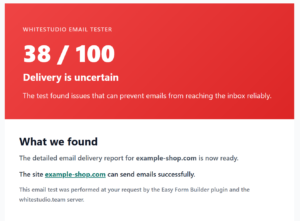
When the Email Tester Service plugin (part of Easy Form Builder) sends a test email from your site and analyzes the result, you receive an email titled “Your WordPress email test report is ready”. Here’s a real example of that report for a site with problems:
A sample report scoring 38/100: SPF is “Needs attention” and DKIM/DMARC are “Needs setup”.
At the top of the email you’ll see a number between 0 and 100. It’s calculated from several factors: whether the email arrived at all, whether the subject and content matched, how long delivery took, the spam risk from SpamAssassin, and — most relevant here — the status of three domain trust checks: SPF, DKIM and DMARC. A failed SPF check costs up to 20 points, a missing DKIM up to 15 points, and a missing DMARC up to 10 points.
Score range
Meaning
90–100
Excellent
75–89
Good
60–74
Needs Improvement
40–59
Poor
0–39
Failed
In the “Domain trust checks” section of that same email, each of the SPF, DKIM and DMARC rows shows one of three statuses:
Status shown
What it means
Looks good
Correctly configured; nothing to do
Needs setup
This record doesn’t exist in DNS at all
Needs attention
The record exists but is failing or misconfigured
2. What do SPF, DKIM and DMARC actually do?
All three are TXT records in your domain’s DNS settings. None of them are installed in WordPress itself — instead, they tell the receiving mail service (Gmail, Yahoo, Microsoft, etc.) whether to trust messages that claim to come from your domain or treat them as spam.
SPF (Sender Policy Framework): a list of servers allowed to send email on behalf of your domain. If your WordPress server or SMTP service isn’t on that list, the recipient assumes the message is forged.
DKIM (DomainKeys Identified Mail): adds an encrypted digital signature to every outgoing email, proving it really came from your domain and wasn’t tampered with in transit.
DMARC (Domain-based Message Authentication): tells the recipient what to do if a message fails SPF or DKIM (accept it, quarantine it, or reject it), and where to send reports about it.
Without any of these, many contact-form emails, WooCommerce receipts, or WordPress password-reset emails will land straight in spam or never get delivered at all — even when WordPress itself reports that the email “was sent”.
3. Fixing it with Cloudflare DNS
If your domain’s nameservers point to Cloudflare, you add SPF, DKIM and DMARC records from inside that panel. Important: Cloudflare doesn’t send email and doesn’t generate DKIM — it’s only where these records live. Your email sending service (SMTP plugin or transactional provider) gives you the exact values to add.
Log in to the Cloudflare Dashboard, select your domain, and go to DNS → Records.
For SPF: if you already have a TXT record starting with v=spf1…, edit it instead of adding a new one — never create two separate SPF records; every sending service must be combined into a single line.
For DKIM: copy the value from your email sending provider’s dashboard (e.g. Brevo or SendGrid). It usually has a specific Name (like s1._domainkey) and a long Content value starting with v=DKIM1; k=rsa; p=…
For DMARC: create a new TXT record named _dmarc. It’s safer to start with a “report only” policy so good emails aren’t rejected, then tighten it after a few weeks.
Click Save. The proxy status on these records should be grey (DNS only), never orange.
Changes usually propagate in 5–30 minutes (occasionally up to 24 hours). Verify with the free tools at MXToolbox.com/SuperTool.aspx or dmarcian.com.
Shared hosting note: if your domain’s DNS is managed from your host’s panel instead of Cloudflare, add the same three records through that host’s DNS Zone Editor — the logic is identical, only the menu names differ.
4. Fixing it with an SMTP plugin
WordPress’s default mail function (wp_mail) usually sends through the host’s PHP mail, which has no DKIM and often no correctly configured SPF either. The simplest, most reliable fix is replacing it with an SMTP plugin connected to a professional sending service.
Install and activate WP Mail SMTP, FluentSMTP, or Easy WP SMTP (all three are free and reputable).
In the plugin’s settings, choose a sending service: Brevo (Sendinblue) or Gmail/Google Workspace are good free starting points; SendGrid, Mailgun, or Amazon SES suit higher volume.
Follow the plugin’s setup wizard to connect that service’s account to your domain. At this step the service generates one or more DKIM records (and sometimes SPF) and tells you exactly where to add them in DNS.
Add those values in Cloudflare (or your host) following the method from the previous section; most of these plugins even have a “Verify DNS” button that checks the status after you’ve added the record.
Send a test email from inside the SMTP plugin itself to confirm the connection works, then re-run the Email Tester Service report.
5. The right combination: SMTP + Cloudflare together
These two methods aren’t competitors — they’re complementary. The SMTP plugin fixes the actual delivery path and enables DKIM on the message itself; Cloudflare (or any DNS host) is where SPF, DKIM and DMARC get published so the recipient can read them. The right order: connect the SMTP plugin to a trusted service first, publish the SPF and DKIM values it gives you in Cloudflare, add a DMARC record with p=none, then run a fresh report.
6. Verifying the result and getting a high score
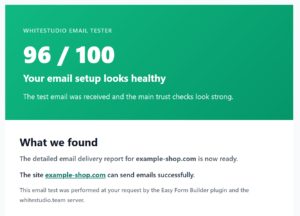
After making the changes above and waiting at least 15–30 minutes for DNS to propagate, run a fresh email test. If everything went correctly, the new report should look something like this:
The same site after connecting an SMTP plugin and publishing the DNS records in Cloudflare — the score went from 38 to 96.
If you still see red or amber after 24 hours, the most likely causes are: a duplicate SPF record (two separate v=spf1 lines instead of one merged line), the TXT record accidentally set to proxied, or the SMTP plugin still on its default PHP mail setting with the connection never completed.
7. A ready-made prompt for ChatGPT, Gemini, or any AI
Replace the fields in the first section below with the details from your own report email (the “Site”, “Sender” and “Domain trust checks” sections), then paste the whole thing into ChatGPT, Gemini, or Claude.
[1. Replace this section with your own information]
Site domain: example.com
Sender email address: [email protected]
Report score: 38/100
SPF status: Needs attention
DKIM status: Needs setup
DMARC status: Needs setup
Spam folder review: High spam risk, SpamAssassin 6.4
Hosting provider: e.g. cPanel shared hosting / Cloudways / Hetzner
Is the domain's DNS on Cloudflare?: Yes / No
Is an SMTP plugin installed? Which plugin and which sending service?: e.g. none / WP Mail SMTP with default PHP mail
Full text of the "Recommended next steps" section from the email, if any: [paste here]

[2. Do not change this section]
You are a senior email deliverability and WordPress DNS specialist. Based on the information I gave above, tell me exactly and step by step:
1) What is causing my score to drop and SPF/DKIM/DMARC to fail in my current setup; explain each one separately in plain language.
2) Which WordPress SMTP plugin and which sending service (Brevo, SendGrid, Mailgun, Amazon SES, or Google Workspace) fits my hosting and email volume best, and why.
3) Exactly which DNS records (type, name, content) need to be added or fixed so all three turn green; if my information isn't enough to write the exact DKIM value, tell me where in that provider's dashboard to copy it from.
4) If my DNS is on Cloudflare, walk me through the exact steps in the Cloudflare panel (DNS → Records); if it's on a different host, explain the difference.
5) Give me a final checklist to confirm the changes worked after 24 hours.
If you need more information to continue, ask me now.
8. Frequently asked questions
Is setting up DKIM and DMARC really mandatory?
Technically WordPress will send email without them, but since 2024 Gmail and Yahoo require DMARC for bulk senders, and without it many emails get rejected or sent straight to spam.
Does having Cloudflare alone fix the problem?
No. Cloudflare is only where DNS records are published. If your email sending service (SMTP plugin or default PHP mail) doesn’t generate DKIM itself, there’s nothing to publish in Cloudflare yet.
How long does it take for DNS records to become active?
Usually between 5 minutes and 2 hours, though by DNS standards it can occasionally take 24–48 hours. Check with MXToolbox after about half an hour.
What if my domain is on shared hosting and I don’t use Cloudflare?
Add the same three records (SPF, DKIM, DMARC) from your host’s DNS Zone Editor (cPanel, DirectAdmin, etc.) — the logic is exactly the same as Cloudflare, only the interface differs.
Why does the report say the email never arrived when WordPress says it was sent?
Because wp_mail() only confirms the message was handed to the server, not that the recipient received it. Between those two steps, the host’s outbound mail queue or the recipient’s spam filter can still stop the message — which is exactly where correct SPF and DKIM matter.
This guide is based on the actual scoring logic and email template of the Email Tester Service plugin (part of Easy Form Builder).
WhiteStudio Team
We build Easy Form Builder — the drag-and-drop WordPress form plugin with free conditional logic. We write practical, no-fluff guides to help you get the most out of WordPress.