Short answer: install Easy WP SMTP or the official plugin of a service with a free plan (Brevo, SMTP2GO, Mailjet, Postmark), paste the API key from the service, send the plugin’s test email, then copy the SPF and DKIM records the service gives you into your DNS. Easy Form Builder keeps writing the emails; the service only delivers them.
If the email test said No email arrived, or you would rather not edit DNS yourself, the quickest fix is to let a service built for email delivery send your site’s messages. All the services below have a free plan and an official WordPress plugin, and Easy Form Builder can open the installer for you with one click.
This replaces your hosting’s mail system, not the form plugin. Easy Form Builder keeps writing the emails; WordPress hands them to the service instead of to your host’s mail server. Nothing in your forms changes. The service, its plan limits and its sign-up are theirs, not WhiteStudio’s.
Video: Connect a free email service to WordPress in 10 minutes —
Which service?
| Service | Free plan (as published by the service; check before relying on it) | Good for | Plugin on wordpress.org |
|---|---|---|---|
| Easy WP SMTP | Free plugin; sending goes through whichever service or mailbox you connect (SMTP2GO, Brevo, Gmail, any SMTP server…) | One plugin for any service, or an email account you already have | easy-wp-smtp |
| Brevo | A daily sending allowance | Most small sites; also newsletters | mailin |
| SMTP2GO | A monthly sending allowance | Simplest setup: one API key | smtp2go |
| Mailjet | A daily sending allowance | Sites in the EU | mailjet-for-wordpress |
| Postmark | A small monthly allowance | Transactional email with top deliverability | postmark-approved-wordpress-plugin |
A contact form rarely sends more than a few dozen emails a day, so every free plan here is enough. Pick the one whose sign-up you find easiest; Brevo and SMTP2GO are the usual choices.
Step 1 — install the official plugin (three clicks)
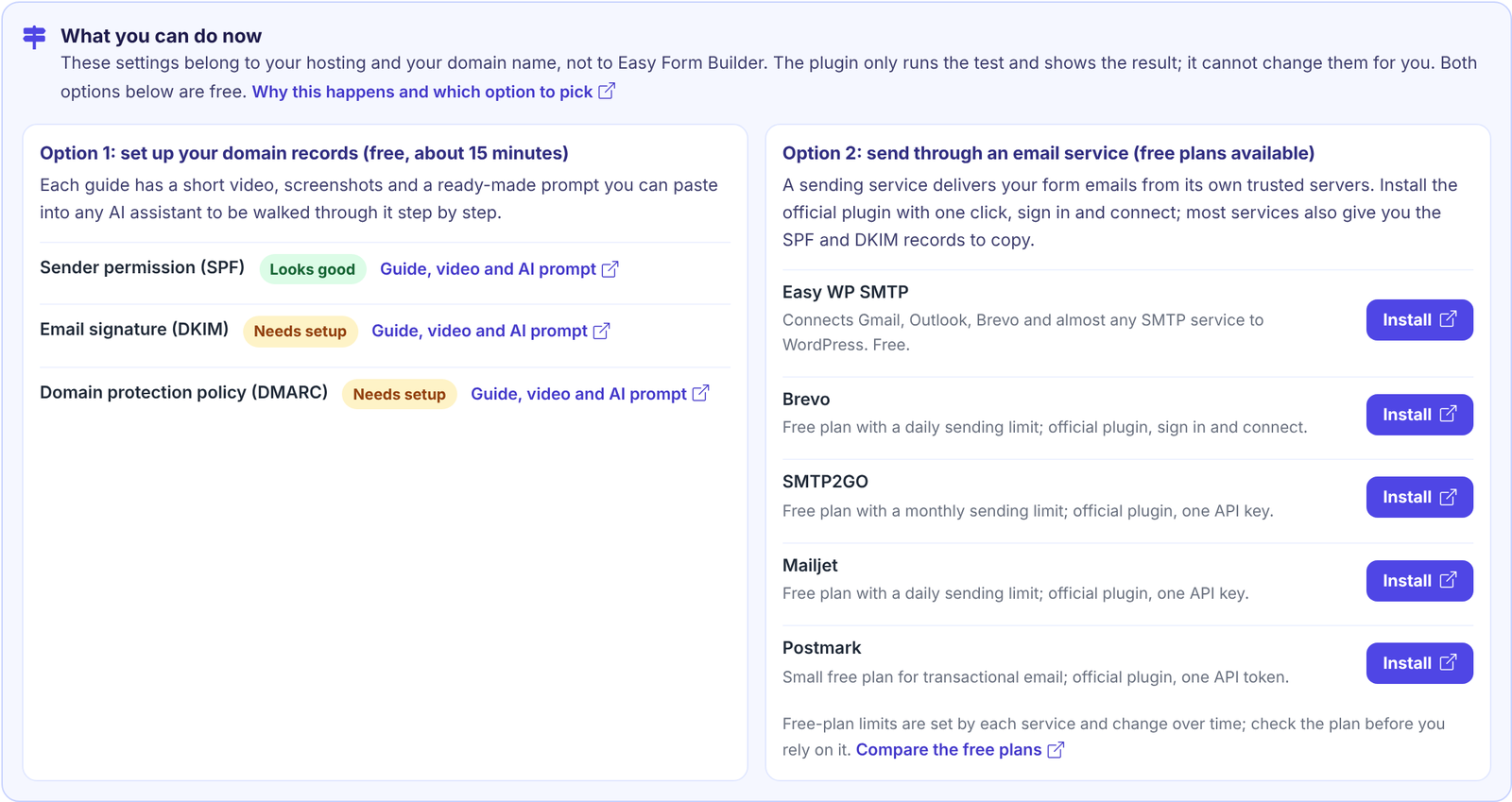
In the email test result, under Option 2, press Install next to the service. A new tab opens with WordPress’s own page for that plugin; press Install Now at the bottom right, wait a few seconds, then press Activate. (This is the standard WordPress installer — Easy Form Builder does not download anything itself. If you do not see Install buttons, your user account is not allowed to install plugins; ask the site administrator.)
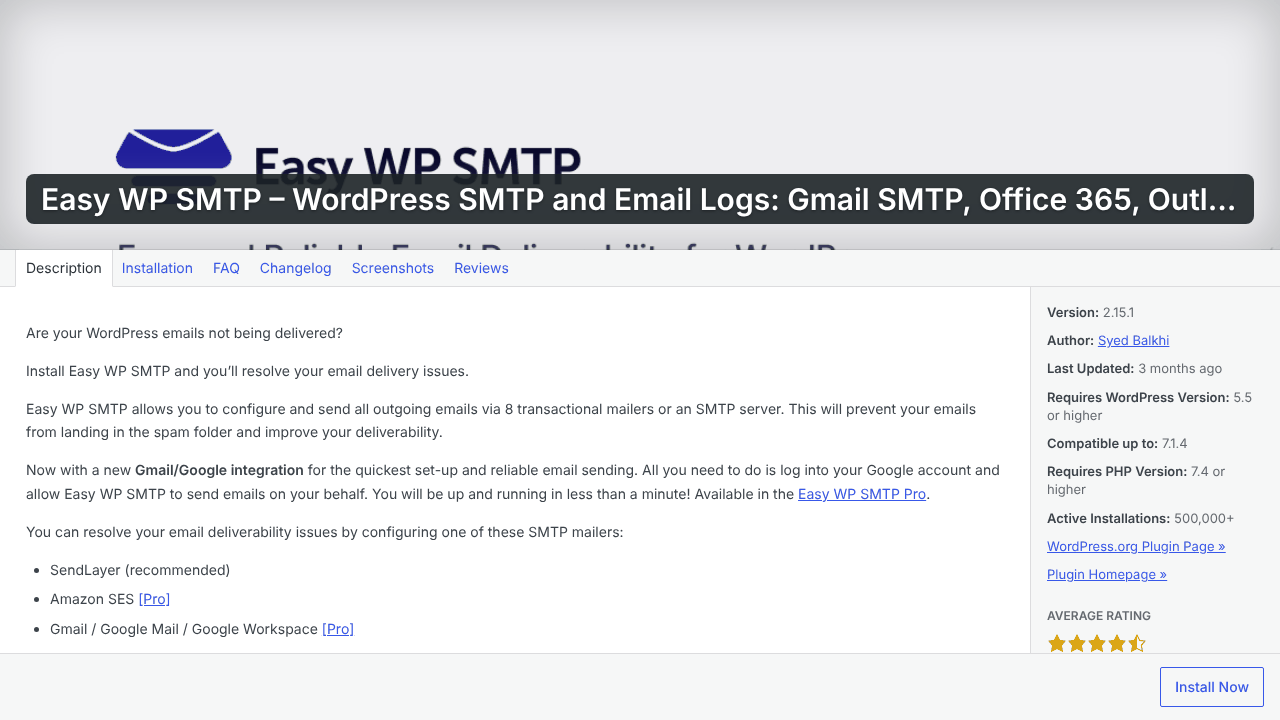
The plugin is now installed, but it is not connected to the service yet: that is Step 2. (The email test result does not refresh by itself; the next test lists the service as Installed.)
You can also install any of them from Plugins → Add Plugin by searching the name.
Step 2 — create the free account and connect
Each plugin has a settings page that asks you to sign in or paste an API key:
- Brevo: sign up at brevo.com → in the plugin, paste the API key (Brevo → SMTP & API → API keys). Turn on “Send emails through Brevo”.
- SMTP2GO: sign up → create an API key (Sending → API Keys) → paste it in the plugin. Done.
- Mailjet: sign up → copy the API key and secret key → paste both in the plugin.
- Postmark: sign up → create a Server → copy its API token → paste in the plugin; set the sender signature (your from-address) in Postmark.
- Easy WP SMTP: the first time you activate it, its Setup Wizard opens by itself. Choose your mailer (SMTP2GO, Brevo, Mailjet, Postmark, any SMTP server and more), paste the API key, keep Force From Email switched on, and on the features screen untick Smart Contact Form (it would install WPForms, a second form plugin). Mailers with a PRO badge, such as Google / Gmail sign-in and Outlook / 365, need Easy WP SMTP Pro; with the free plugin, Gmail works through Other SMTP with a Google app password. Full walkthrough with a video: Set up Easy WP SMTP for your WordPress form emails.
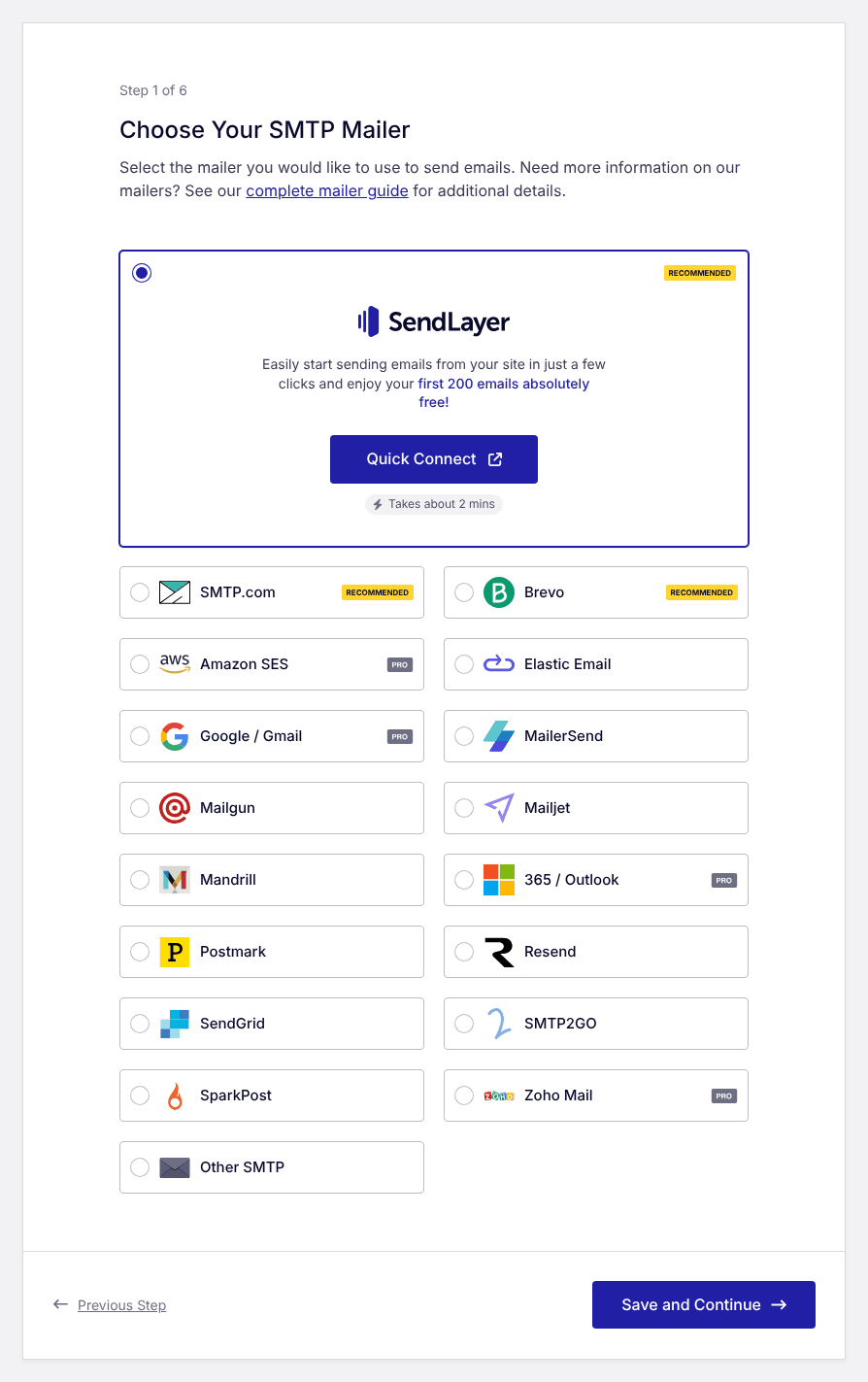
Most plugins have a Send test email button. Use it: it tells you the connection works before you leave the page.
Step 3 — set the From address
Services only send from an address they have verified. Pick one address on your own domain ([email protected]), not a Gmail address unless you are sending with Gmail itself, and use it:
- At the service: verify your whole domain if the service offers it (most do, on the same page as the SPF and DKIM records of Step 4), or at least this address as a verified sender / sender signature. The whole domain is better: Easy Form Builder’s Check Email Server test sends from its own From Address (
no-reply@followed by your domain in the free version), and the service accepts that only from a verified domain. - In the plugin’s From email setting. Most of these plugins can apply it to every email WordPress sends; in Easy WP SMTP, keep Force From Email switched on.
- In Easy Form Builder → Settings → Email Settings → From Address, if you use Easy Form Builder Pro. In the free version that field is a Pro feature and form emails go out as
no-reply@followed by your site’s domain; step 2 takes care of it for form emails.
Step 4 — copy the records the service gives you
On the service’s Domains / Authenticate page you will find SPF and DKIM records for your domain. Add them in your DNS panel — the guides are short:
Without them, the service still delivers, but your score stays lower and some mailboxes keep filing you as spam.
Step 5 — test again
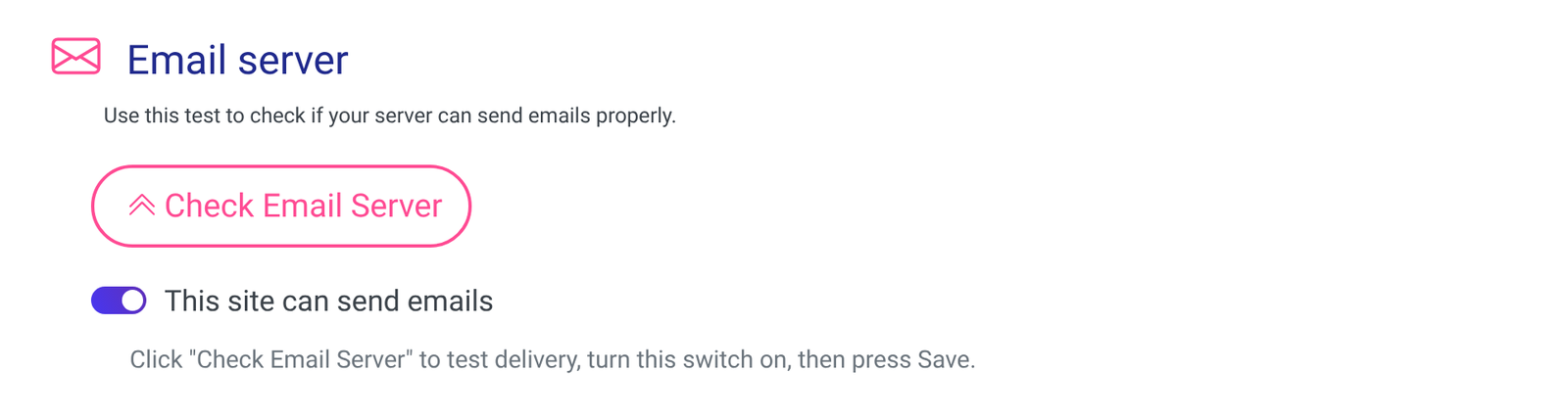
Run Easy Form Builder → Settings → Email Settings → Check Email Server. With a connected service and the records in place, most sites score above 80.
Frequently asked questions
Does pressing Install connect the service by itself? No. Install opens WordPress’s installer for the service’s official plugin; after Install Now and Activate the plugin is in place, and you connect it once, inside that plugin, with your account or API key. After that nothing else is needed: Easy Form Builder sends through WordPress, so every form email goes through the service automatically. If the service refuses an email (a wrong API key, an unverified sender), that email does not go out through the service: the notification and confirmation emails of a form submission are then not delivered at all, and Easy Form Builder sends only a few others, such as its password recovery email, again through your host’s mail server, where they may land in spam. So after every change, send the plugin’s own test email; it shows the real error.
Is it really free? The services list free plans with daily or monthly limits. Limits and terms are theirs and change; check the pricing page before you rely on one.
Will visitors see the service’s name? No. The email comes from your From address. Some free plans add a small footer line; check the plan details.
Can I keep my host’s email and only use the service for forms? Yes. An SMTP plugin routes all WordPress email (forms, password resets, WooCommerce) through the service; your normal mailbox is untouched.
Easy WP SMTP or the service’s own plugin? Either works, but use only one. Easy WP SMTP connects any of these services and lets you switch later without changing plugins; a service’s own plugin covers only that service.
Do I still need SPF, DKIM and DMARC? For the best result, yes — and the service hands you the exact records, so it is the easiest moment to add them.
Ready-made prompt for any AI assistant
[My details — replace]
My domain: example.com
Service I chose (or "help me choose"): (Brevo / SMTP2GO / Mailjet / Postmark / Gmail via Easy WP SMTP)
Plugin I use: (Easy WP SMTP / the service's own plugin)
Plugin installed and activated? (yes / no)
Roughly how many form emails per day: …

[Instructions — do not change]
You are helping a non-technical WordPress site owner connect a free email sending service.
The form plugin (Easy Form Builder) keeps writing the emails; the service only sends them.
1. If I asked you to choose, pick one service for me and say why in two sentences.
2. Walk me through: creating the free account, finding the API key (exact menu names), pasting
   it into the plugin, and sending the plugin's test email. One step at a time; ask what I see.
3. If I use Easy WP SMTP, tell me to untick Smart Contact Form on the wizard's features screen
   (it would install and activate WPForms, a second form plugin). If I send with Gmail and the free
   Easy WP SMTP, tell me to use the Other SMTP mailer with a Google app password (the Google / Gmail
   mailer is Pro).
4. Tell me which From address to use (one address on my own domain, or my Gmail address if I send
   with Gmail) and where to set it: in the
   plugin's From email (in Easy WP SMTP keep Force From Email on), and at the service, where I should
   verify my whole domain if the service offers it, not only that one address. Easy Form Builder's
   Check Email Server test sends from its own From Address (no-reply@ my domain in the free version)
   even when the plugin forces the From email, and the service accepts that only from a verified
   domain. If I use Easy Form Builder Pro, also tell me to set Easy Form Builder → Settings →
   Email Settings → From Address to the same address. If I send with Gmail, there is no domain to
   verify: tell me that Check Email Server may then fail or show my Gmail address as the sender while
   my form emails still go out.
5. Then show me where in the service to find the SPF and DKIM records for my domain, and end
   with how to re-run Check Email Server in Easy Form Builder.