Short answer: form emails land in spam or disappear when your domain is missing one of three DNS records (SPF, DKIM, DMARC) or when your host’s mail server is not trusted. These are hosting and domain settings, not Easy Form Builder settings. Fix it for free by adding the three records in your DNS panel (about 15 minutes) or by sending through a free email service such as Brevo or SMTP2GO.
You built a form, someone filled it in, and the email never showed up — or it is sitting in the spam folder. This page explains what is really happening and which of the two free fixes to pick. You do not need any technical background.
This is not an Easy Form Builder setting. The plugin writes the email and hands it to WordPress. Whether that email is trusted depends on your hosting and your domain name — settings that live in your hosting panel and your DNS, not inside the plugin. Easy Form Builder can test them and show you the result, but it cannot change them for you. Every form plugin has exactly the same dependency.
What the test is telling you
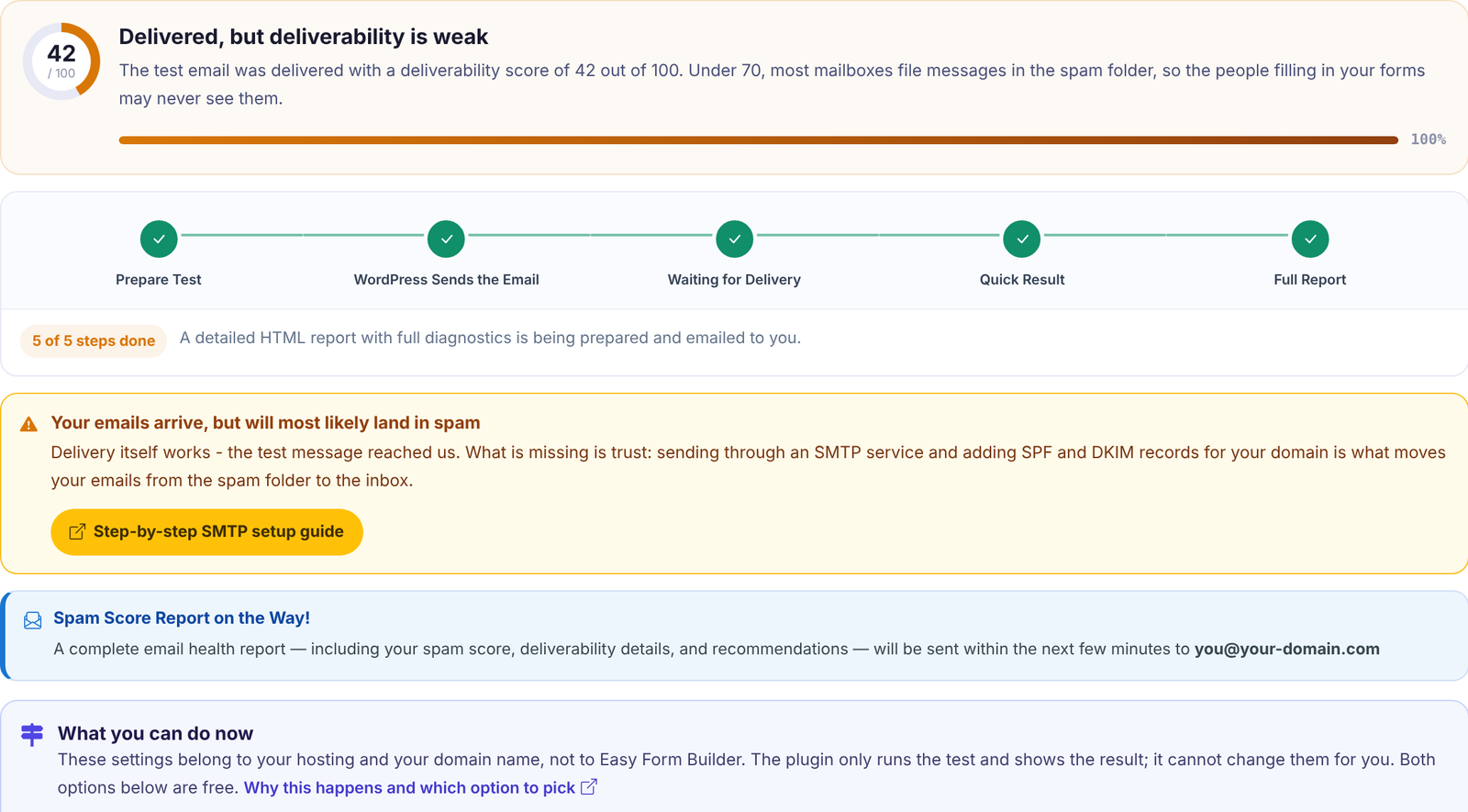
Open Easy Form Builder → Settings → Email Settings and press Check Email Server. Your site sends one real email to WhiteStudio’s test mailbox, and a minute later you get a score out of 100.
| What you see | What it means |
|---|---|
| Score 70 or higher | Your emails reach the inbox. Nothing to do. |
| Score under 70, “Delivered, but deliverability is weak” (a very low score says “Delivered, but likely to be filtered as spam”) | The email arrives, but mailboxes do not trust the sender, so most of them file it as spam. |
| “No email arrived” | Your host did not deliver the email at all, or it was rejected on the way. |
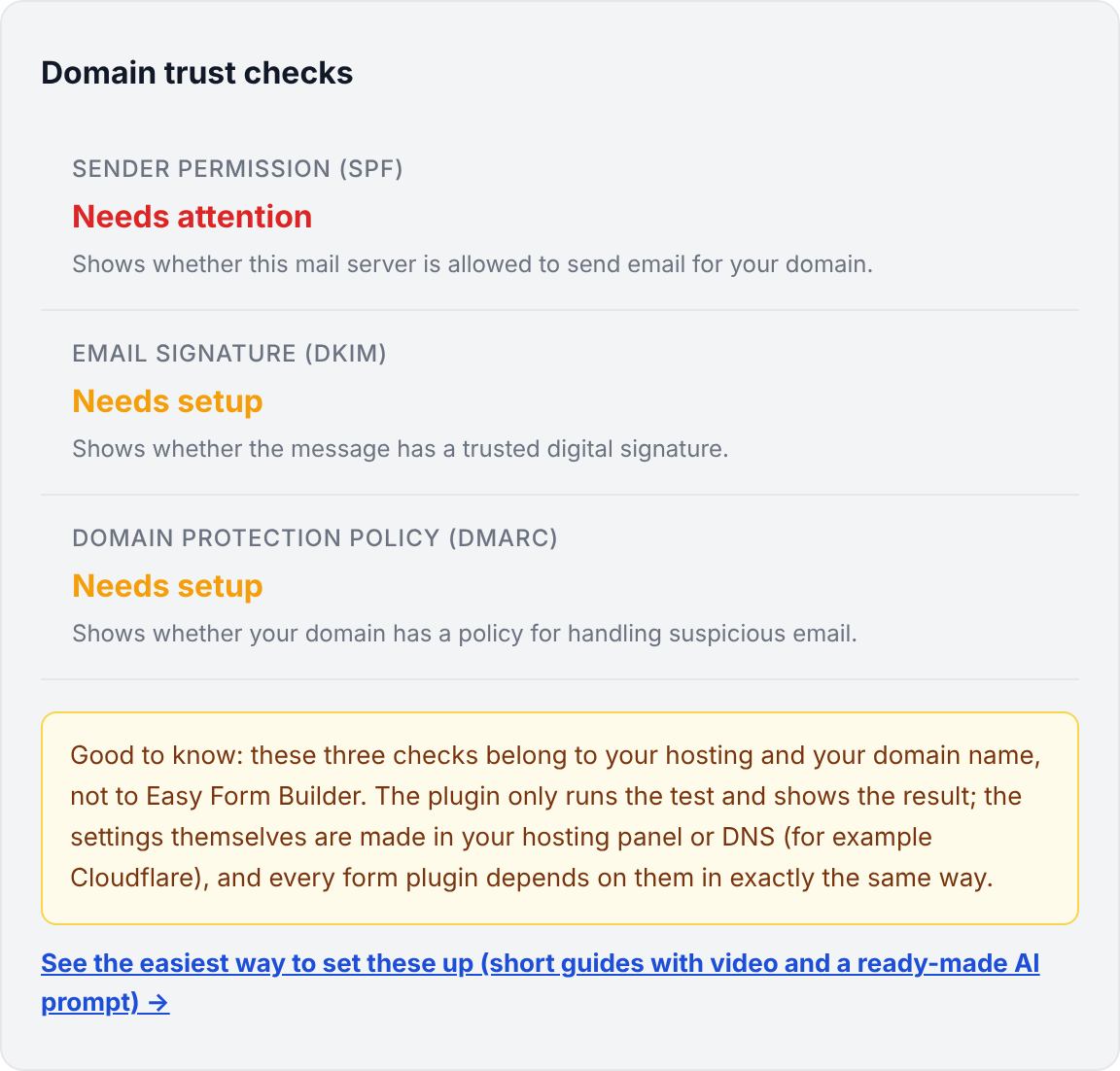
Under the result, three lines tell you why the score is low:
- Sender permission (SPF) — a public note on your domain that says which servers may send email in your name.
- Email signature (DKIM) — a digital signature that proves the email was not changed on the way.
- Domain protection policy (DMARC) — the rule that tells mailboxes what to do when those two checks fail.
Each one marked Needs setup is a record missing from your domain’s DNS. Mailboxes such as Gmail and Outlook check all three on every email; since 2024 they treat a missing DMARC as a reason to send mail to spam.
A few minutes later the full report arrives by email, with the same three checks and a link to these guides:
The two ways to fix it — both free
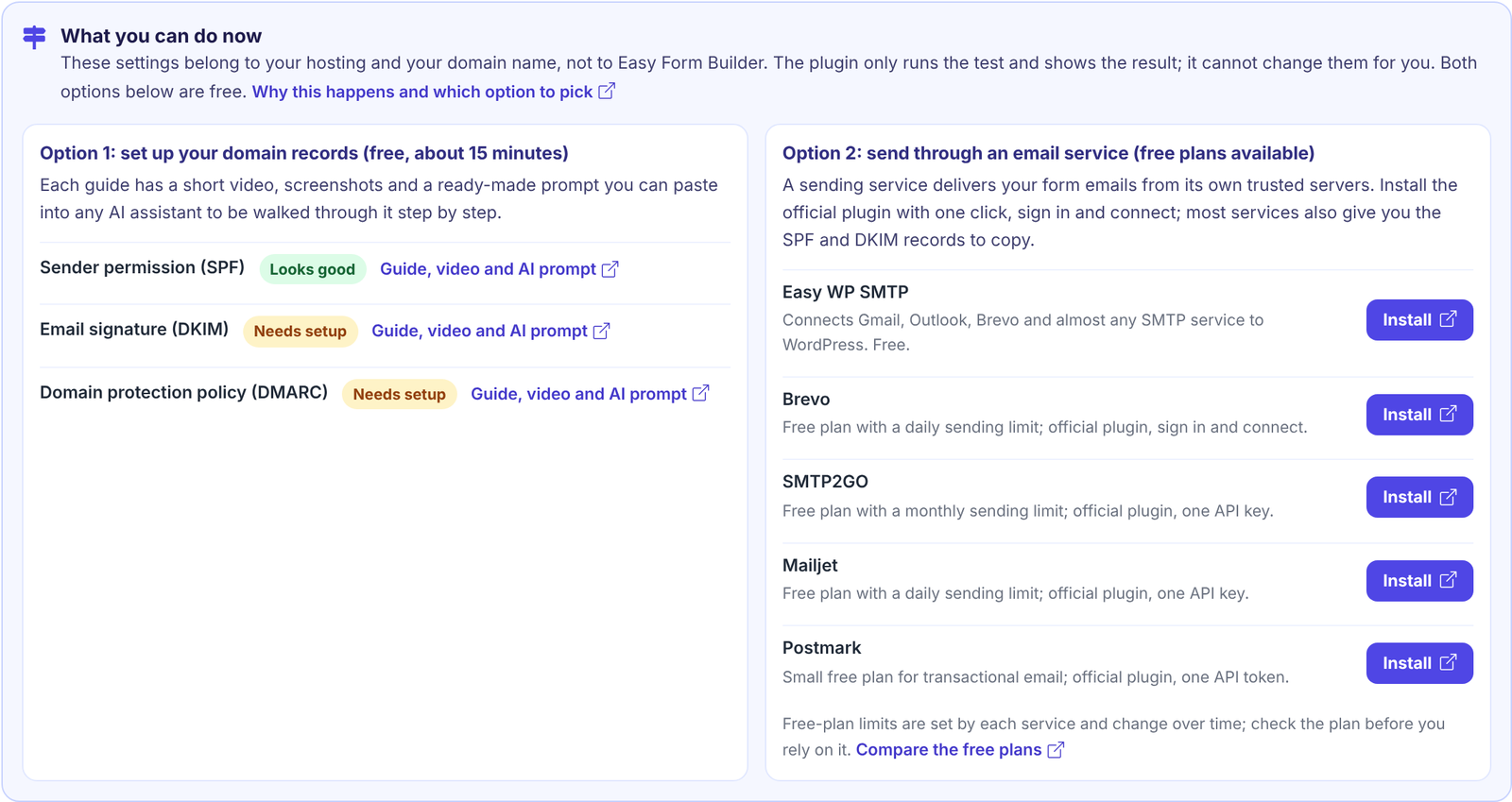
Option 1 — add the three records to your domain (about 15 minutes)
You add three short text records in your DNS panel (Cloudflare, your registrar, or your host). Nothing changes on your site; you are only telling the world which servers are allowed to send email for your domain. Pick this if your host’s own mail works but lands in spam.
Each guide has a two-minute video, screenshots, and a prompt you can paste into any AI assistant to be walked through it line by line.
Option 2 — send through an email service (free plans)
Instead of your host’s mail system, your site hands emails to a service built for delivery (Brevo, SMTP2GO, Mailjet, Postmark, or Gmail through Easy WP SMTP). Their servers are already trusted, and they give you the SPF and DKIM records to copy. Pick this if the test says No email arrived, or if you would rather not touch DNS yourself.
The result screen lists these services with an Install button. It opens the normal WordPress plugin installer for Easy WP SMTP or the service’s official plugin in a new tab; you press Install Now, then Activate. Installing does not connect anything yet: you still sign in to the service inside that plugin (or paste its API key), which takes most people under ten minutes. From then on WordPress hands every email to the service, Easy Form Builder’s included, with no setting to change in Easy Form Builder.
Which should I pick?
| Your situation | Pick |
|---|---|
| Score under 70, email arrived, you can log in to your DNS | Option 1 |
| “No email arrived” | Option 2 (then Option 1 with the records the service gives you) |
| You send more than a few hundred emails a day | Option 2 |
| You never want to see a DNS panel | Option 2 |
Doing both is the best result: a trusted sending service and SPF, DKIM and DMARC on your domain.
After the fix: check again
DNS changes take between a few minutes and a few hours to spread. Wait, then run Check Email Server again. The free plan allows one test a day and three a week, so make all your changes first and test once.
Frequently asked questions
Will changing a plugin setting fix this? No. There is no setting inside Easy Form Builder — or any form plugin — that can make your domain trusted. The fix is always on the hosting or domain side.
I already use a different form plugin on another site and it works there. That site’s domain probably has the records already, often added by the host or an email service. Run the same test on both and compare the three lines.
Does this affect the confirmation emails my visitors get? Yes, the same way. Fixing it fixes both the alert to you and the confirmation to them.
Is my host at fault? Usually not — most hosts do not add these records for you because they do not know which email services you use. Your host’s support can often add SPF and DKIM for their own mail server if you ask.
Ready-made prompt for any AI assistant
Copy everything below, replace the first block with your own details (from the test result), and paste it into ChatGPT, Gemini, Claude or any assistant.
[My details — replace]
My domain: example.com
My hosting company: (e.g. Hostinger, SiteGround, Bluehost)
Where my DNS is managed: (e.g. Cloudflare / my registrar / my host)
Easy Form Builder test result: score 42/100, SPF: Needs setup, DKIM: Needs setup, DMARC: Needs setup
Do I use an email sending service or SMTP plugin? (none / which one)

[Instructions — do not change]
You are a patient email-deliverability helper for a non-technical WordPress site owner.
The form plugin is not the cause and cannot fix this; the fix is in my hosting or DNS.
1. In plain words, tell me which of the two options fits me better: (A) add SPF, DKIM and DMARC
   records to my domain, or (B) send through a free email service, and why.
2. Then walk me through that option one step at a time. Ask me what I see on screen before
   giving the next step. Never give more than three steps at once.
3. When a record value is needed, tell me exactly where to copy it from in my provider's panel.
4. At the end, tell me how long to wait and how to re-run the Easy Form Builder email test.
Start by asking me which option I want to try.