Short answer: To skip a step in a multi-step WordPress form, install the Conditional logic add-on for Easy Form Builder (Free Plus or Pro). Open Form Settings, Conditional logic, Fields and add a rule such as Customer type Is Personal, then Hide Step: Company details. Visitors who pick Personal go straight from step 1 to step 3.
Quick facts
- Plan: Free Plus (up to 3 field rules per form, 2 conditions per rule) or Pro (no limit). Not available on the Free plan.
- Needs: the Conditional logic add-on and a form with at least 3 steps
- Time: about 5 minutes
- Tested with: Easy Form Builder 4.3.1 on WordPress 7.1.4
- Last verified:

Video transcript
Skip the steps your visitors do not need. Step one asks for the Customer type. In Form Settings, click Conditional logic, then Add on the Fields tab. Under IF, choose Customer type, keep Is, and pick Personal. Under THEN, choose Hide Step, select Company details, and click Save. The rule card confirms: Hide Step, Company details. Save the form and add it to a page. A visitor picks Personal, clicks Next, and lands on Your message, skipping Company details. Easy Form Builder is free on WordPress.org. The full guide is on whitestudio.team.
What skip logic does in a multi-step form
Skip logic, also called branching logic, sends each visitor down the path that fits their answers. In a quote form, a private customer has no company name or VAT number, so the Company details step only slows them down. With a skip rule, the form checks the answer on step 1 and leaves out the steps that do not apply.
Easy Form Builder does this with the Conditional logic add-on. A rule on the Fields tab can act on a whole step, not only on single fields. Three step actions are available:
| Action | What the visitor sees | Best for |
|---|---|---|
| Hide Step | Next and Previous pass over the step. Its fields, even required ones, are not checked. | Leaving out a step for some answers (the most reliable choice) |
| Show Step | The step stays hidden until the rule matches. | A step only a few visitors need |
| Jump to Step | The form moves at once when the answer matches, without Next. Previous walks back through the steps in between. | An immediate move, for example to the last step |
This guide shows the Hide Step rule from start to finish and then explains when Jump to Step is the better choice. For the basics of building a multi-step form, see the multi-step form guide; for every other rule type, see the Conditional Logic complete guide.
Before you start
- Your site is on Free Plus or Pro. On the Free plan, the Conditional logic window shows an upgrade notice instead of the rule builder.
- The Conditional logic add-on is installed: in WordPress open Easy Form Builder » Add-ons, find the Conditional logic Add-on card and click Install.
- You have a multi-step form, or you build one in Step 1 below. If you have never added steps, the step-by-step guide to multi-step forms explains the Step element and its settings.
Step 1: Put the deciding question before the step to skip
The rule needs a question with fixed answers on an earlier step, such as a Radio Button, Select or Check Box field. Our example is a quote form with three steps:
- About you: a Radio Button field Customer type with the options Personal and Business
- Company details: a Company name field, set to required
- Your message: Email and Message
To build it, go to Easy Form Builder » Create and choose New Form. Click the tiles in this order: Radio Button, Step, Text, Step, Email, Longer Text. Each tile is added at the end of the form, and each Step tile starts a new step. Then click the gear icon of each step and field to set its label, and of the Radio Button field to rename its two options.
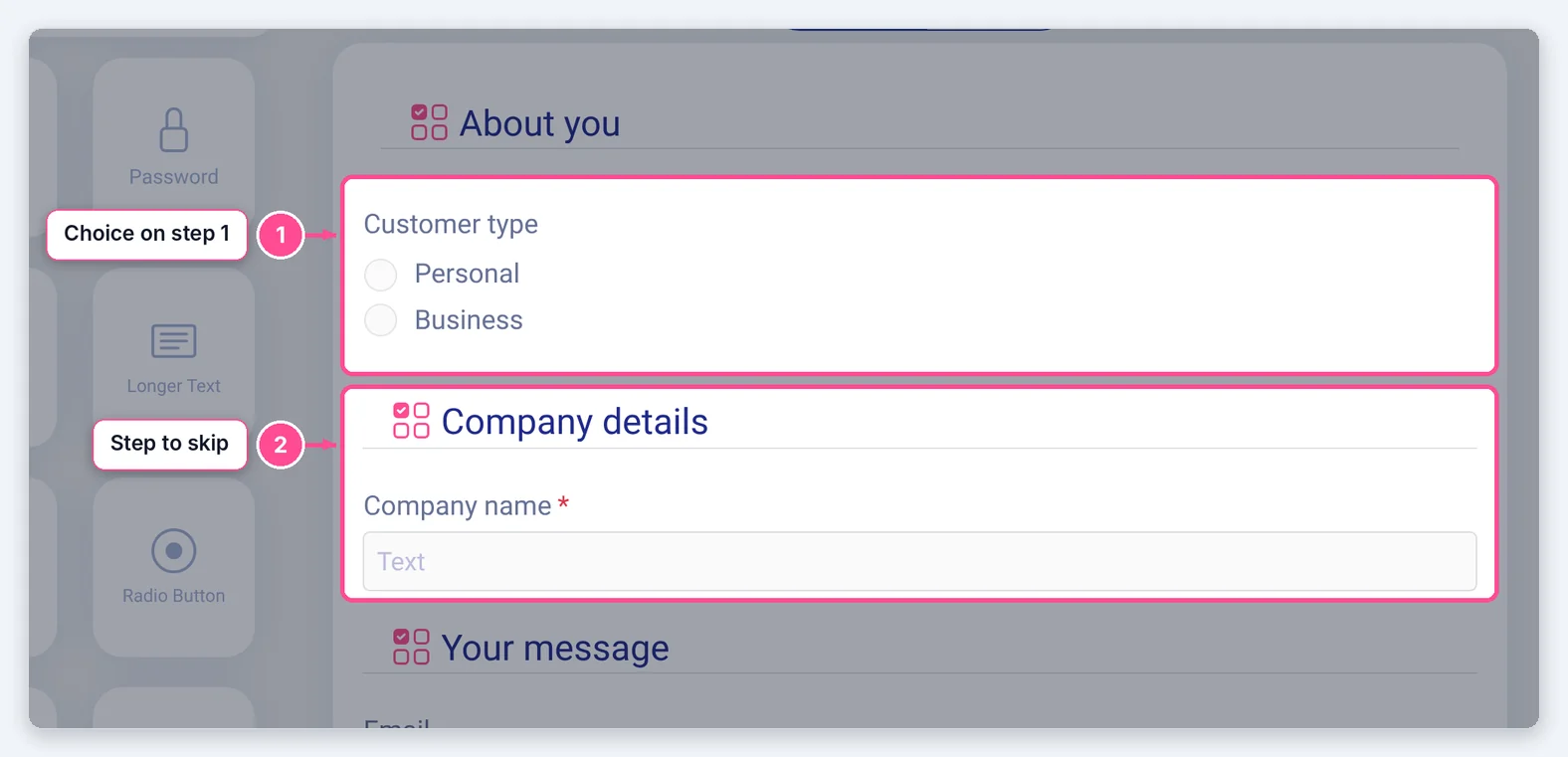
The image shows (1) the deciding question on step 1 and (2) the step we will skip for private customers.
A new blank form hides the step bar. To show visitors where they are, open Form Settings and turn off Hide icons and step names. The screenshots of the live form below use this setting.
Step 2: Open Conditional logic
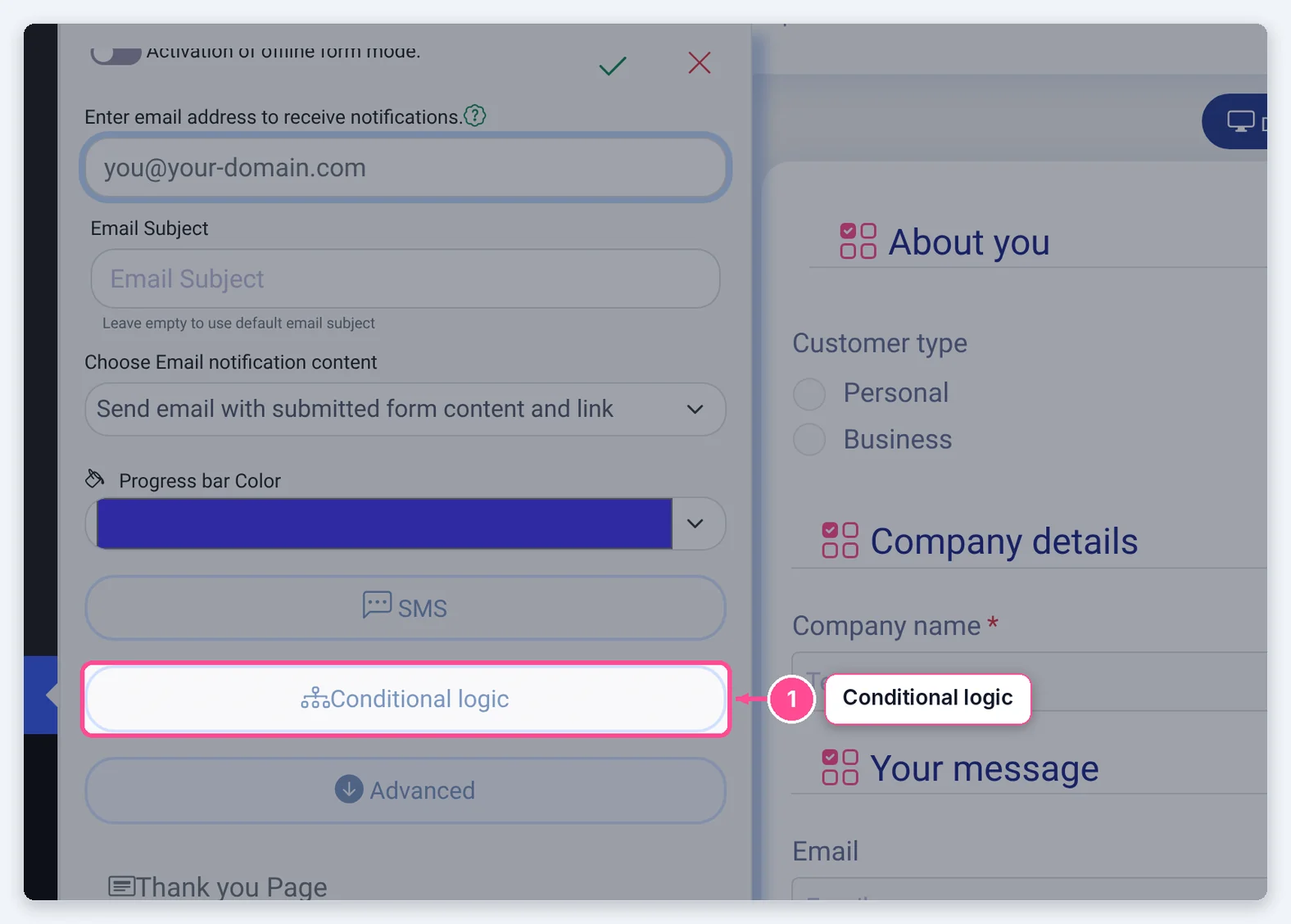
- Click Form Settings at the top of the builder.
- Scroll down the panel and click (1) Conditional logic.
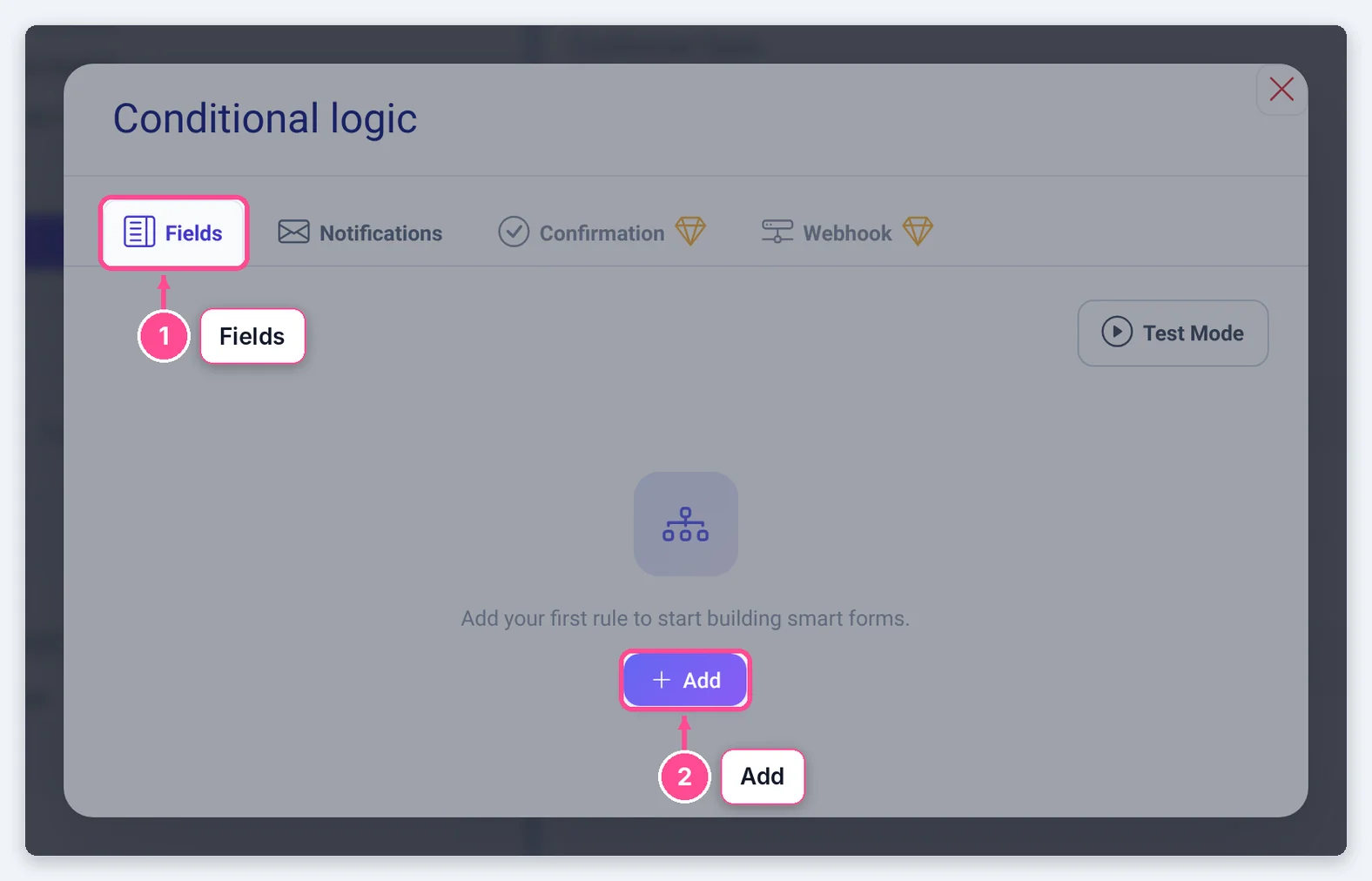
- The window opens on the (1) Fields tab. Step rules live here, next to the show and hide rules for fields.
- Click (2) Add to start a new rule.
Step 3: Create the Hide Step rule
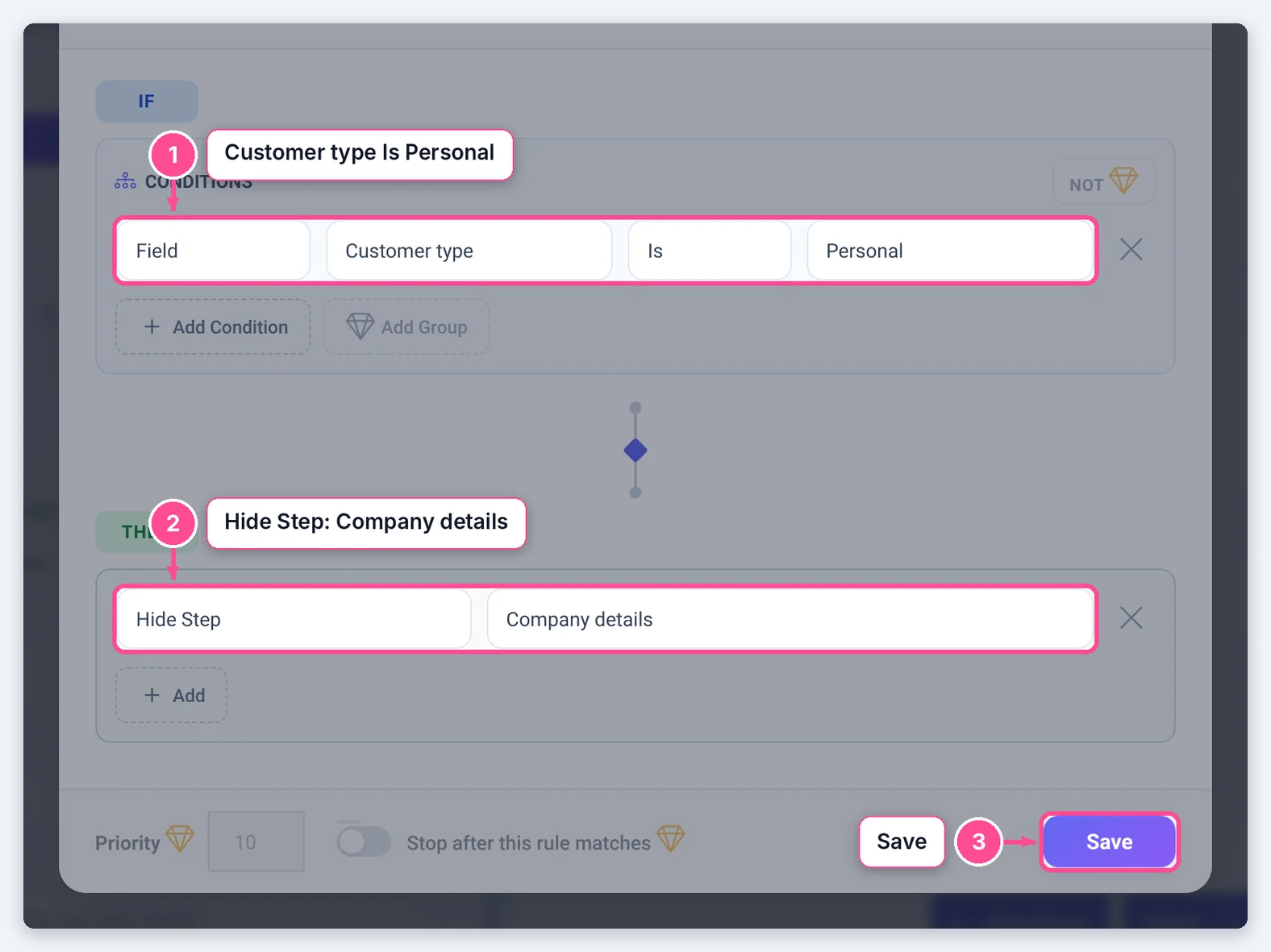
- Under IF, (1) leave the first box on Field, choose Customer type in Select Field, keep Is and choose Personal as the value.
- Under THEN, (2) change Show Field to Hide Step. The second box now lists the steps of the form by name; choose Company details.
- Click (3) Save.
The window returns to the rule list. The card sums up the rule as Customer type Is “Personal” ⟹ Hide Step → Company details. The switch on the card pauses the rule without deleting it.
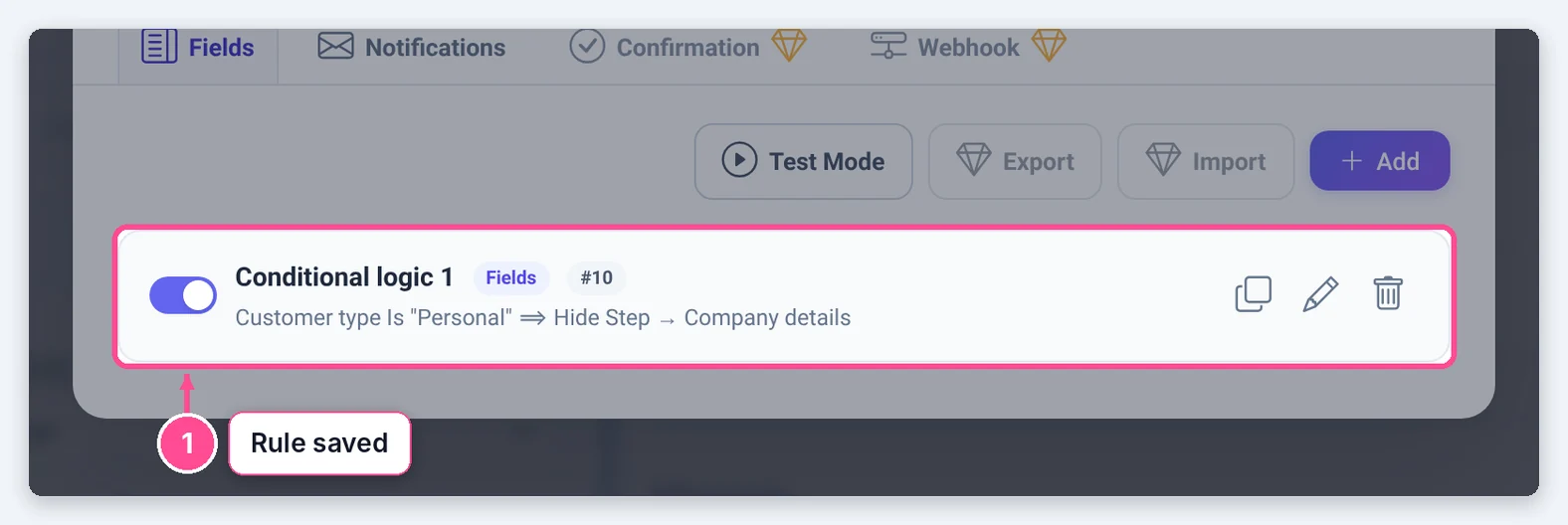
Close the window with the X in its corner and click Save in the builder. Copy the shortcode from the dialog and add it to a page; see how to embed a form in WordPress if you need help with that.
Step 4: Test both paths on the page
- Open the page in a private window. On the first step, choose (1) Personal and click (2) Next.
- The form opens Your message directly. In the step bar, Company details stays inactive (1), because the visitor never saw it.
- Click Previous: the form goes back to About you, again without stopping at Company details.
- Start again with Business. Now Next opens Company details, and the required Company name field must be filled before the visitor can go on.
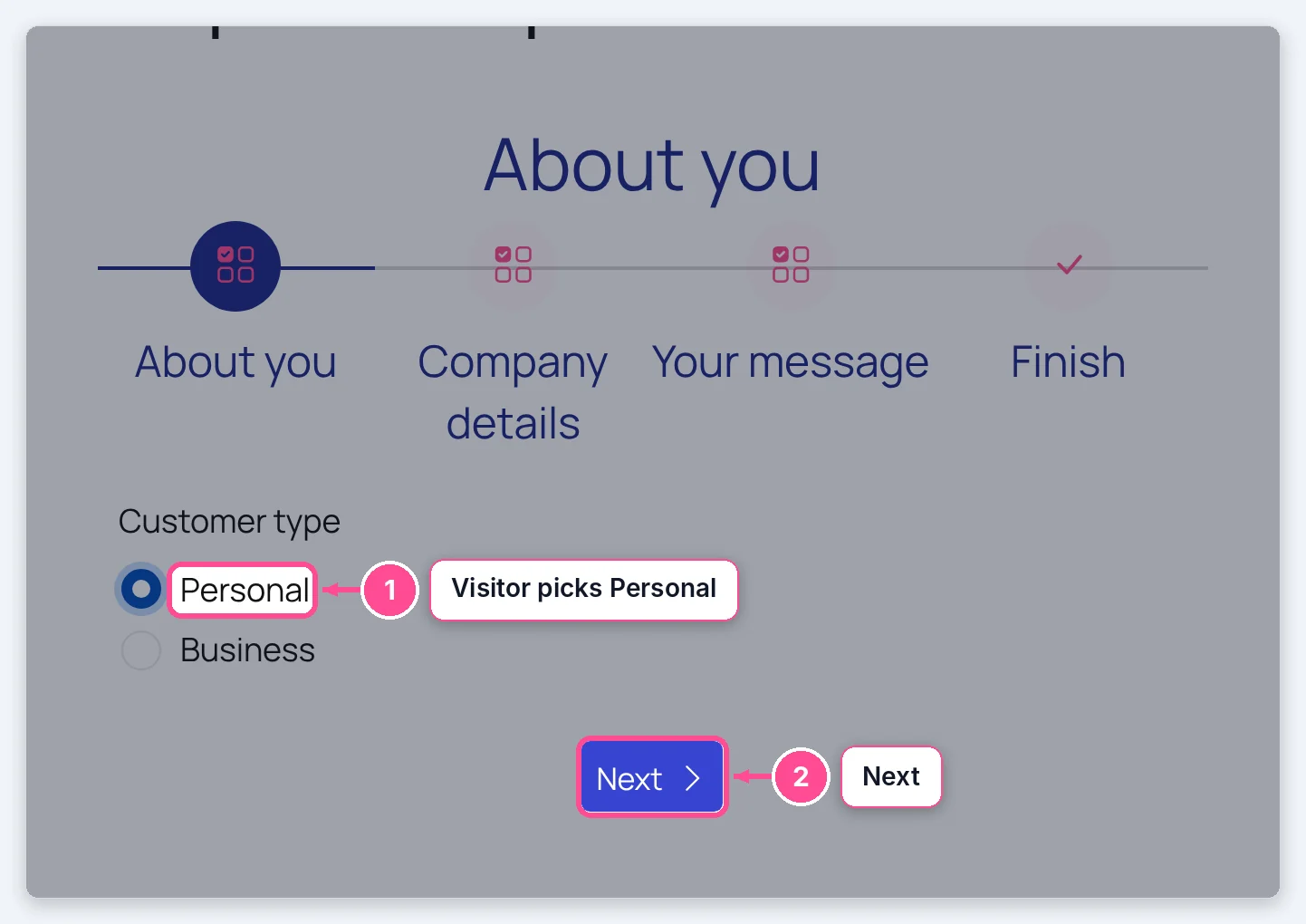
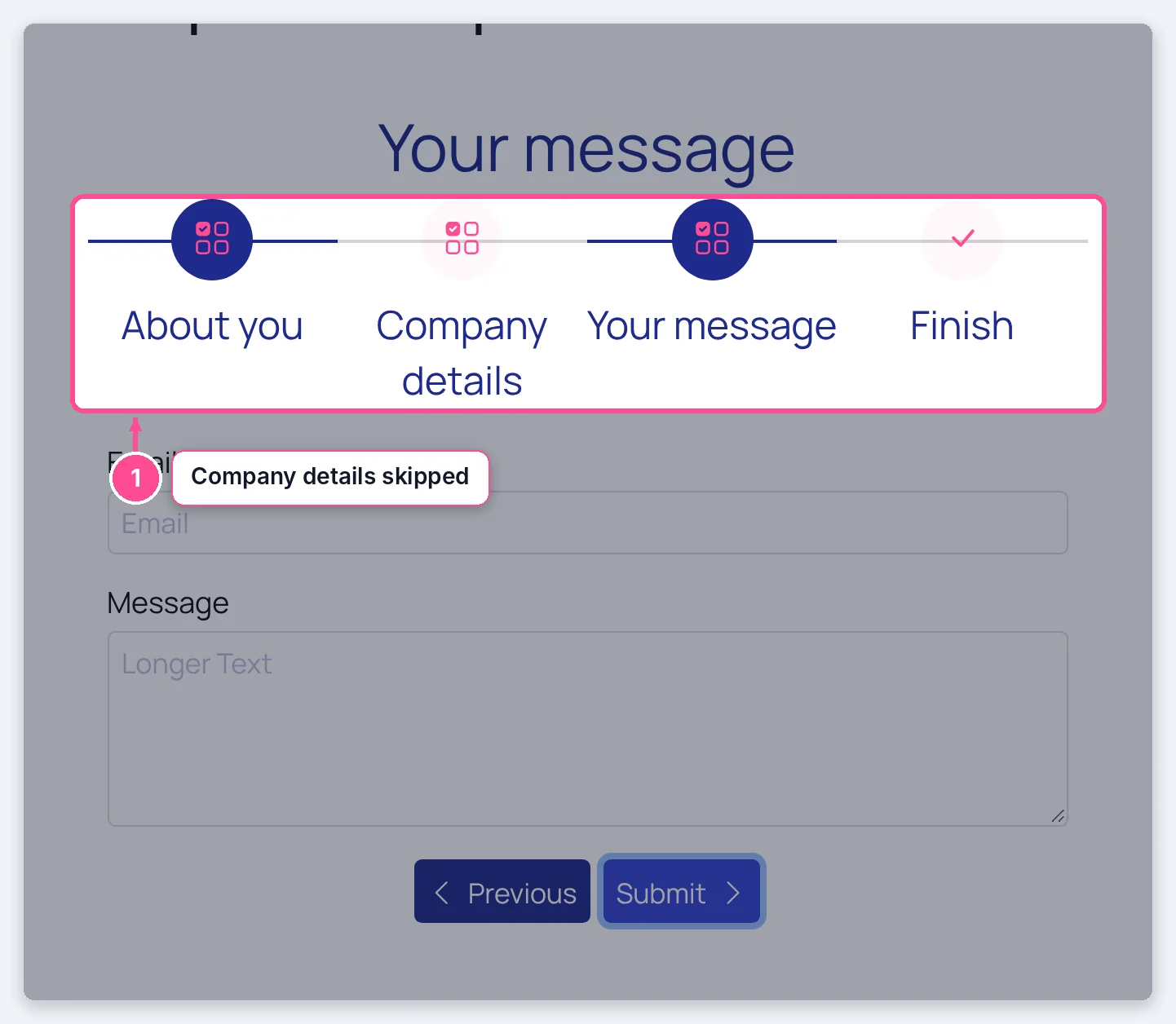
In our test on November 29, 2026, the Personal submission was accepted and saved even though Company name is required. Fields on a hidden step are not checked in the browser or on the server, so a skipped step can safely contain required fields.
Hide Step or Jump to Step?
To use Jump to Step, build the rule the same way and choose Jump to Step under THEN, with the step to land on, for example Your message.
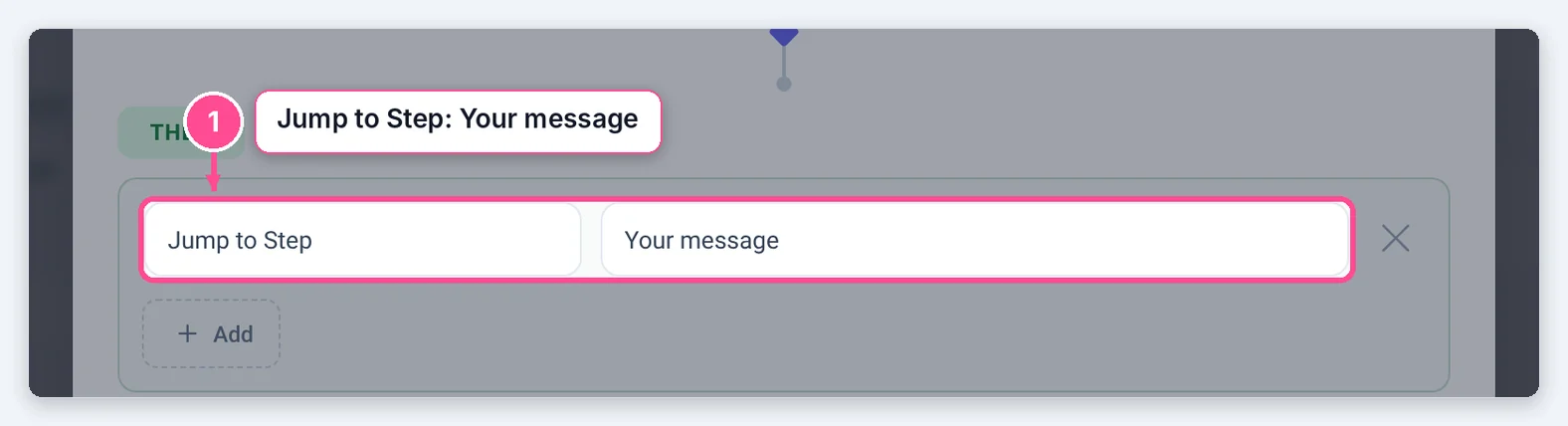
We tested both actions on the same form, and they behave differently:
- Timing. Jump to Step moves the form the moment the visitor picks Personal, before they click Next. Hide Step waits for Next.
- Going back. After a jump, Previous goes to Company details and then to About you, so the skipped step shows up on the way back. If the visitor clicks Next again from step 1, the form goes to Company details, because the jump runs only once for the same answer. Hide Step keeps the step out of the path in both directions.
- Required fields. In both cases a required field on the skipped step does not block the submission.
Use Hide Step to remove a step from a path, which covers most skip-logic needs. Use Jump to Step when a single answer should send the visitor somewhere at once, for example to the last step after the visitor says they only have a short question.
Build more than one branch
- One rule per answer. A form with a Company details step for Business and a Home address step for Personal needs two rules: Customer type Is Personal hides Company details, and Customer type Is Business hides Home address.
- Several steps in one rule. Click Add under THEN to give the same rule a second action, for example a second Hide Step.
- Opposite logic. If a step is for a small group only, use Show Step: the step is hidden for everyone until its rule matches.
- Two conditions. Click Add Condition to combine answers, for example Customer type Is Business and Country Is not Germany.
- Plan limits. Free Plus allows 3 rules on the Fields tab and 2 conditions per rule. Pro removes the limits and adds NOT, Add Group, Priority and Stop after this rule matches.
The answer that decides the path can also change who gets the email: see conditional email routing. To make a field required only for some answers, use the Required and Optional actions described in how to make form fields required or optional.
Troubleshooting
- No Conditional logic button in Form Settings. The add-on is not installed or the site is on the Free plan. Install the add-on under Add-ons.
- The step list under THEN is empty or shows fields. Choose a step action first (Show Step, Hide Step or Jump to Step); only then does the second box list steps.
- The step is not skipped. Check that the value in the rule is the option the visitor picks and that the rule’s switch is on. If you renamed or re-created an option, choose it again in the rule.
- The visitor sees the skipped step after going back. The rule uses Jump to Step. Change it to Hide Step.
- A payment step is missing from the Hide Step list. On payment forms the builder does not offer the step that holds the Stripe or PayPal field, because a visitor could not pay without it.
- The Add button shows a diamond icon. The form already has 3 field rules, the Free Plus limit. Combine actions in one rule, or upgrade to Pro.
Frequently asked questions
Can Easy Form Builder skip a step based on an answer?
Yes. With the Conditional logic add-on on Free Plus or Pro, a Fields rule with the Hide Step action removes a step from the path when an answer matches, for example Customer type Is Personal hides Company details.
Is skip logic free in Easy Form Builder?
It is not in the Free plan. Free Plus, which costs nothing, allows 3 field rules with up to 2 conditions each. Pro has no limit.
What is the difference between Hide Step and Jump to Step?
Hide Step takes a step out of the path for both Next and Previous. Jump to Step moves the visitor to a step as soon as the answer matches; on the way back the steps in between are shown again.
Do required fields on a skipped step block the form?
No. Fields on a hidden or jumped-over step are not checked, so the visitor can submit without them. We tested this with a required Company name field.
Can I show a step only for one answer?
Yes. Use the Show Step action. A step that is the target of a Show Step rule stays hidden until the rule matches.
What’s next
- How to create a multi-step form in WordPress
- Step settings inside the builder, in detail
- Conditional Logic complete guide: fields, emails, confirmation and webhooks
- Send form emails to different teams by answer
- Make form fields required or optional
Updated for Easy Form Builder 4.3.1 on , tested on the Free Plus plan with the Conditional logic add-on; Pro limits are taken from the plugin code.