Short answer: Easy Form Builder has one main shortcode, [EMS_Form_Builder id=5], where 5 is the form’s ID, and one for the confirmation code finder, [Easy_Form_Builder_confirmation_code_finder]. Copy a form’s shortcode from the Save dialog or the Panel list and paste it into any page, post or Shortcode block. Both work on every plan.
Quick facts
- Plan: every plan (Free, Free Plus and Pro). The shortcodes, the block and the page builder elements have no plan check.
- Shortcodes:
[EMS_Form_Builder id=N](also[ems_form_builder id=N]) and[Easy_Form_Builder_confirmation_code_finder] - Time: about 1 minute to copy and paste
- Tested with: Easy Form Builder 4.3.1 on WordPress 7.1.4
- Last verified:

Video transcript
Where to find every Easy Form Builder shortcode. Click Save in the form builder. The Save dialog shows your form shortcode. Click Copy Shortcode. Later, open Panel: the Form Code column lists each shortcode with a copy button. For the confirmation code finder, open Settings, then Responses & Confirmation, and click Copy. In the block editor, type slash easy form, add the Easy Form Builder block, pick your form, and click Publish. The form is live on the page. Easy Form Builder is free on WordPress.org. The full guide is on whitestudio.team.
All Easy Form Builder shortcodes at a glance
This page is the reference: every shortcode the plugin registers in version 4.3.1, what it shows and which settings it takes. For a first walkthrough from an empty page to a working form, follow how to embed a form on WordPress.
| Shortcode | Shows | Attributes | Where it works |
|---|---|---|---|
[EMS_Form_Builder id=5] | The form with ID 5 | id (required) | Everywhere: pages, posts, Shortcode block, widgets |
[ems_form_builder id=5] | The same form (lowercase alias) | id | Everywhere |
[Easy_Form_Builder_confirmation_code_finder] | The confirmation code finder: a box where visitors enter their code to see their submission | none | Everywhere |
[efb_wpbakery_form form_id="5"] | The form, inside a WPBakery element | form_id, show_title, extra_class, css | Only while WPBakery Page Builder is active |
[efb_vc_form form_id="5"] | The form, inside a Visual Composer element | form_id | Only while Visual Composer is active |
The last two are written by the page builders themselves when you use their Easy Form Builder element; you normally never type them. In both, form_id="tracking" shows the confirmation code finder instead of a form.
The form shortcode: [EMS_Form_Builder id=N]
Every form you save gets a number, its Form Code. The shortcode places that form wherever you paste it:
[EMS_Form_Builder id=5]- id is the only attribute. Quotes are optional:
[EMS_Form_Builder id=5]and[EMS_Form_Builder id="5"]give the same result. The plugin itself writes the first form in the Save dialog and the second in the block. - The name is case-sensitive.
[EMS_Form_Builder]and the alias[ems_form_builder]work; any other spelling, such as[Ems_Form_Builder id=5], is not a shortcode and is printed as plain text. - Without an id,
[EMS_Form_Builder]does not show a form: it shows the confirmation code finder. - If the form was deleted, visitors see nothing in that spot. Logged-in users who manage forms see “Form does not exist !!” so you can fix the page.
- You can put several shortcodes on one page. In our test, two different forms on the same page both displayed.
- Text around the shortcode is fine. In a paragraph such as “Contact us:
[EMS_Form_Builder id=5]We reply within a day.” the form is lifted out of the paragraph so its layout stays intact.
Where to copy a form’s shortcode
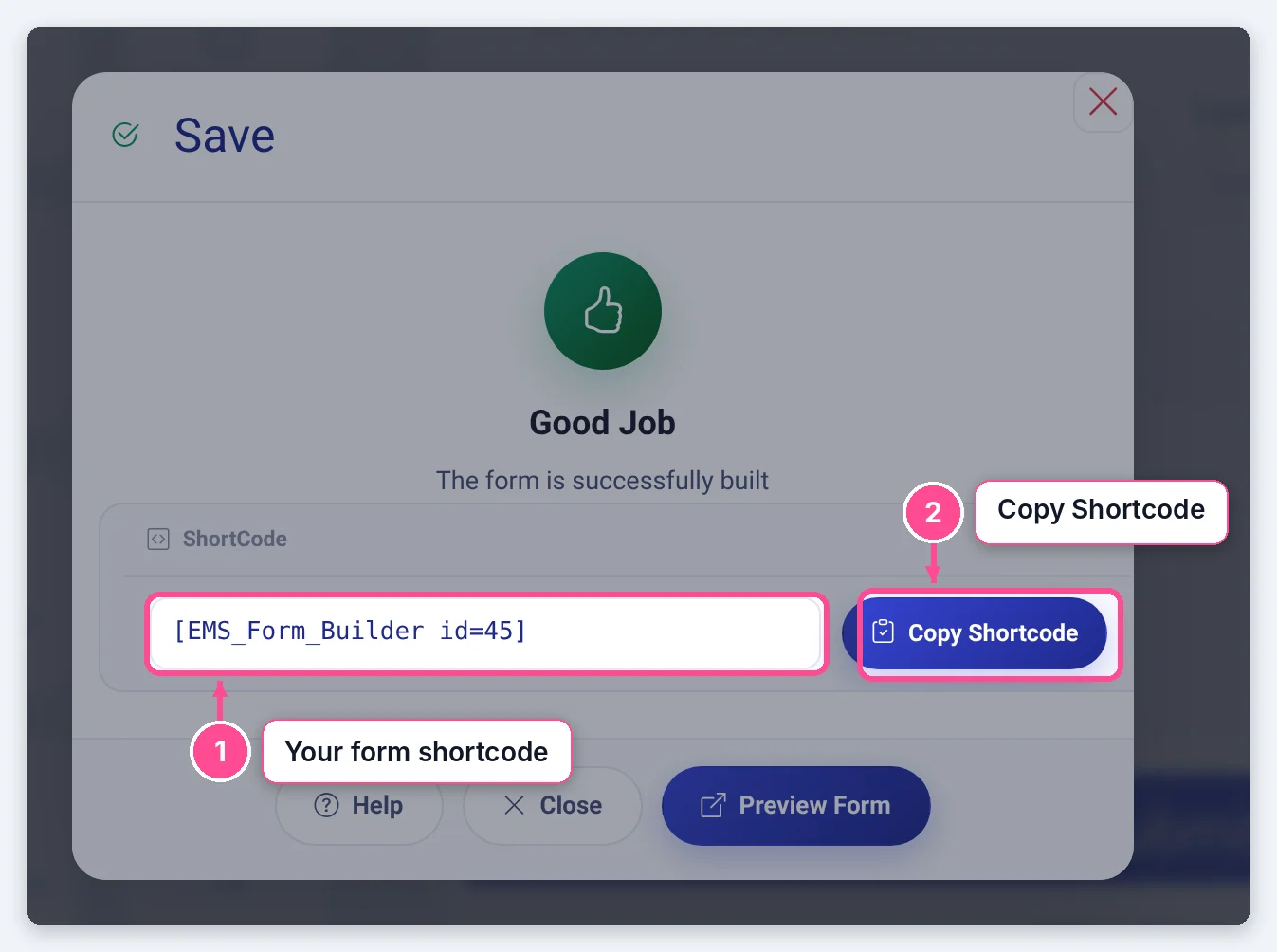
From the Save dialog
When you click Save in the form builder, the Save dialog opens with the message “The form is successfully built”:
- Under (1) ShortCode you see the shortcode with your form’s ID.
- Click (2) Copy Shortcode to copy it to the clipboard.
From the Panel form list
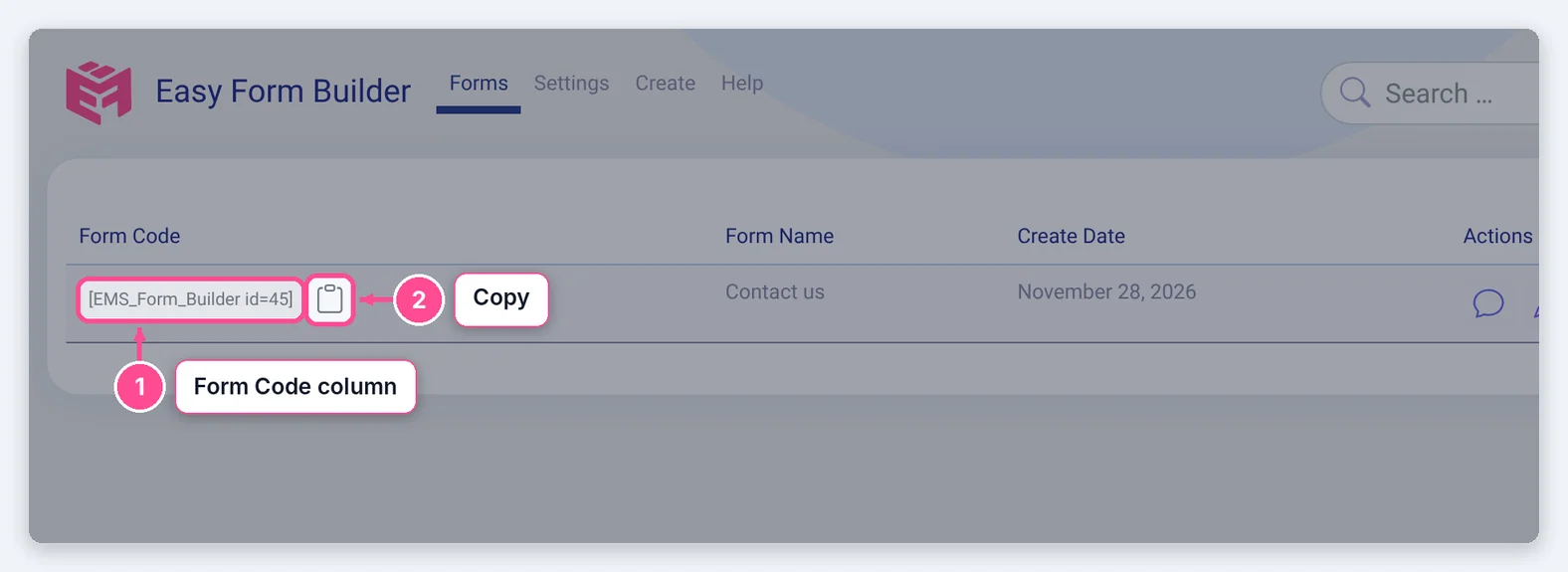
For a form you saved earlier, open Easy Form Builder » Panel. The Forms list shows:
- the shortcode of each form in the (1) Form Code column;
- a (2) copy button next to it, which copies the shortcode.
The list starts with 25 forms, those with new responses first. If yours is not there, click the double-arrow button below the list; each click loads five more.
The confirmation code finder shortcode
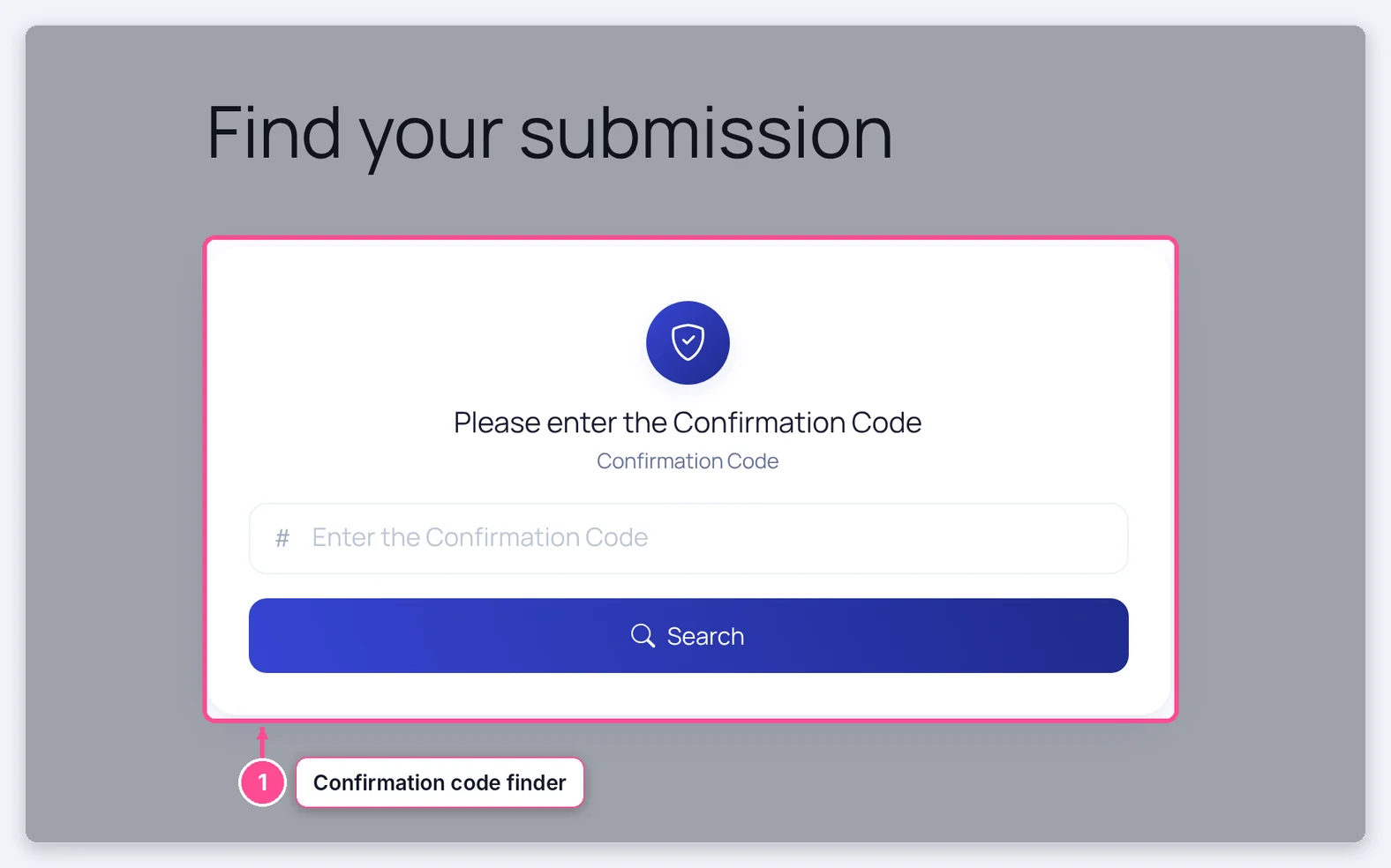
When a form has a confirmation code turned on, each visitor gets a code after submitting. The finder is a small search box where they enter that code to see their submission and any reply. Place it on its own page, for example “Find your submission”:
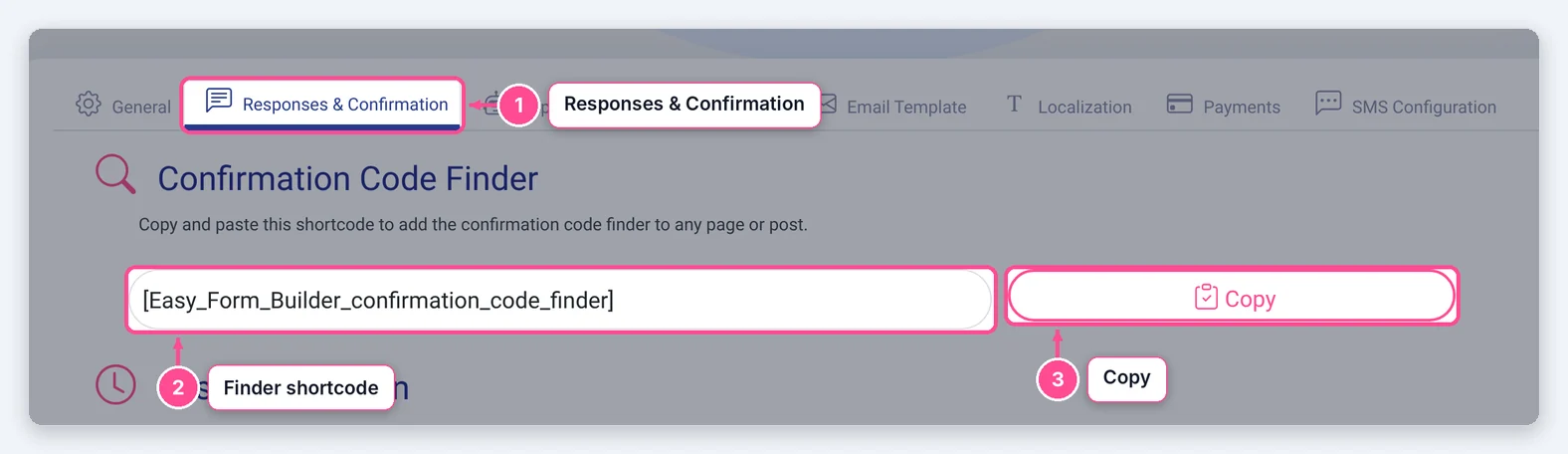
[Easy_Form_Builder_confirmation_code_finder]You can also copy it in the plugin: open Easy Form Builder » Settings, click the (1) Responses & Confirmation tab, and under Confirmation Code Finder you find (2) the shortcode and (3) a Copy button.
On the page, visitors see the box below. In our test a logged-out visitor entered a code and got the submission with its date, the answers and a Reply box.
How to turn the code on for a form and what the visitor receives is covered in the confirmation code guide; how you look up a code as an administrator is in finding a response by confirmation code.
Use the Easy Form Builder block instead of a shortcode
In the block editor you do not need to copy anything. The Easy Form Builder block does the same job as the shortcode:
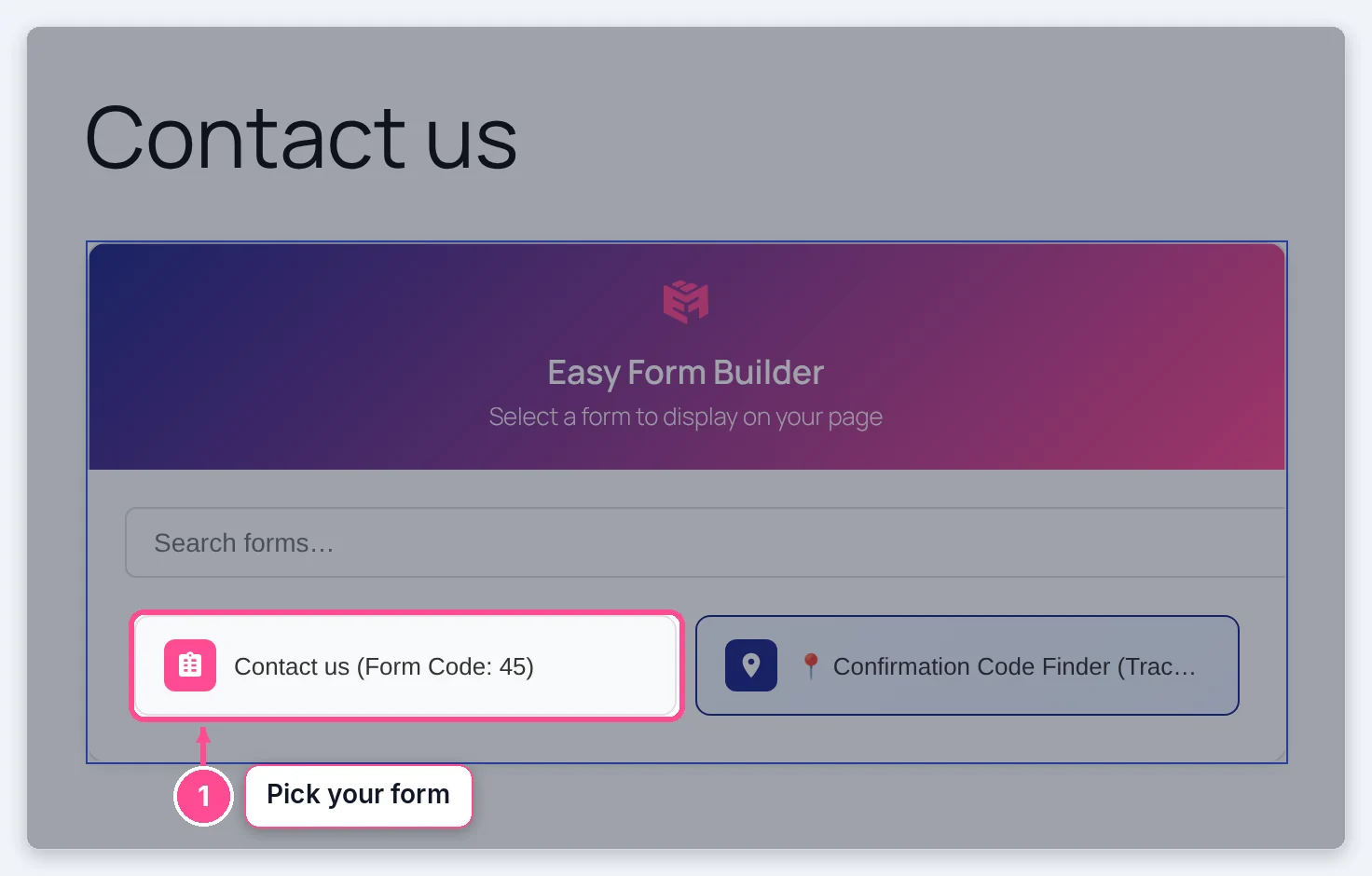
- In a page or post, type /easy form in an empty line and choose the Easy Form Builder block.
- The block lists your forms by name and Form Code. Type in Search forms… to filter, then (1) click your form. The last card, Confirmation Code Finder (Tracking Form), adds the finder.
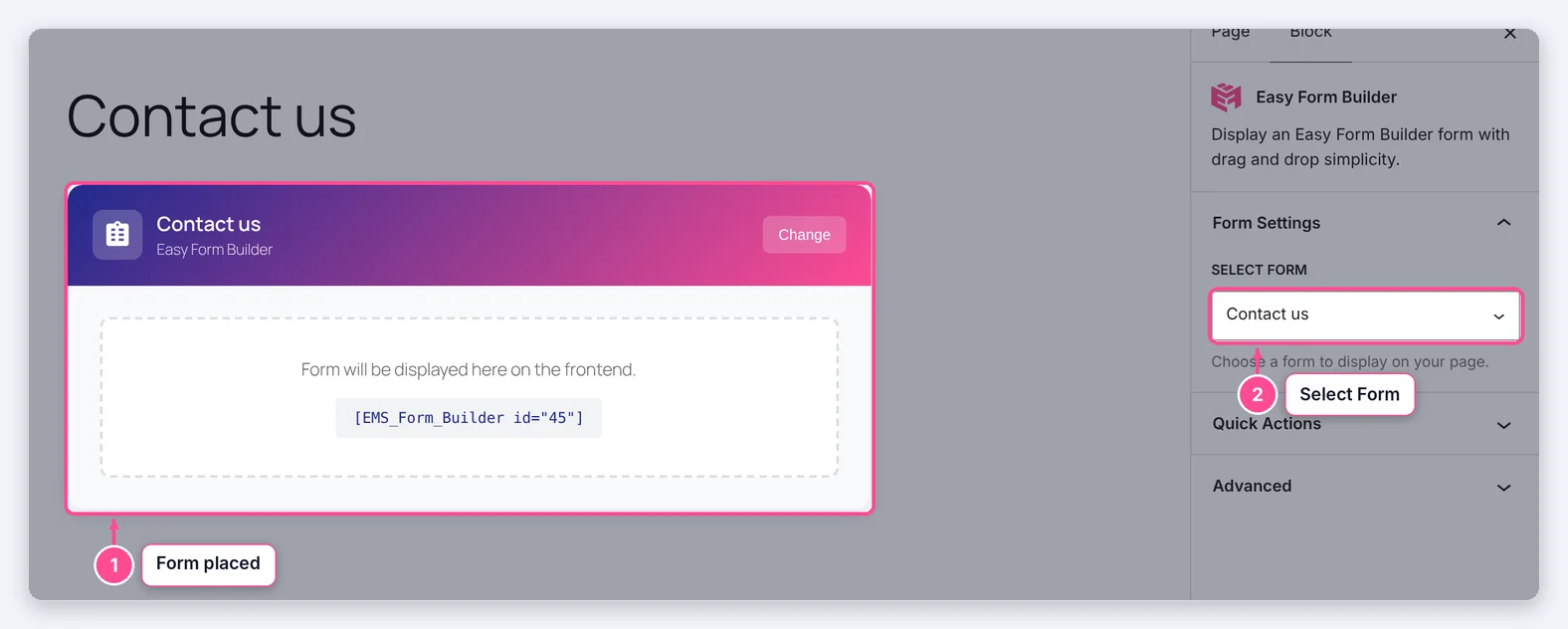
- The block now shows (1) the form name and the shortcode it stands for, with the note “Form will be displayed here on the frontend.” To switch forms, click Change or use (2) Select Form in the block sidebar.
- Click Publish or Update, then view the page to see the form.
The block also supports wide and full alignment and an Additional CSS class under Advanced. If the block is left without a form, visitors see nothing and logged-in editors see “Easy Form Builder: Please select a form to display.” Pasting the shortcode into a core Shortcode block or a Paragraph block works just as well.
Shortcodes in page builders, widgets and themes
| Where | What to use |
|---|---|
| Elementor | The Easy Form Builder widget (in the Easy Form Builder and General categories): Select Form, Show Form Title, and Container style for padding, background, border, radius and shadow. A Shortcode widget with the shortcode also works. |
| WPBakery Page Builder | The Easy Form Builder element under Content: Select Form, Show Form Title, Extra Class Name and Design options. It saves [efb_wpbakery_form]. |
| Visual Composer | The Easy Form Builder element with Select Form. It saves [efb_vc_form]. |
| Divi, Beaver Builder, Brizy, Oxygen and others | A text or code module with [EMS_Form_Builder id=5]. |
| Widget areas | A Shortcode block (block widgets) or a Text widget with the shortcode. |
| Theme template (PHP) | <?php echo do_shortcode( '[EMS_Form_Builder id="5"]' ); ?> |
Inside the editor of a page builder (Elementor, Divi, Beaver Builder, Brizy, Oxygen, Visual Composer) the form is not drawn live. You see a pink and blue box with the text “The form will be displayed on the frontend.” and the Form ID. That is expected; open the published page to see the real form. We tested the block, the Shortcode block and the shortcodes on WordPress 7.1.4; the Elementor, WPBakery and Visual Composer elements are described from the plugin code, as those builders were not installed on our test site.
Shortcodes and page caching
A form page must not come from a page cache, because it carries a short-lived security token. Easy Form Builder 4.3.1 finds pages whose content holds one of its shortcodes, the block, the Elementor widget or a page builder element, and marks them as not cacheable for WP Rocket, LiteSpeed Cache, Cloudflare APO and other caches. A form placed in a footer, widget or popup keeps the page cacheable and fetches a fresh token when it loads. Server and CDN caches need a manual rule; see how to exclude form pages from cache.
Troubleshooting
- The shortcode shows as text on the page. WordPress did not recognise it. Check that Easy Form Builder is active under Plugins, and that the name is spelled exactly
[EMS_Form_Builder]or[ems_form_builder]; capital letters matter. Copy it again from the Save dialog or the Panel list instead of typing it. - The confirmation code box appears instead of the form. The plugin did not get a usable ID. This happens with a missing id and with curly quotes, which some editors and word processors insert when you paste:
[EMS_Form_Builder id=”5”]showed the finder in our test. Retype the quotes as straight quotes or leave them out. - Nothing appears where the form should be. The ID belongs to a deleted form, or the block has no form selected. Open the page while logged in: you then see “Form does not exist !!” or “Please select a form to display.” Copy the current shortcode from the Panel list.
- In Elementor, Divi or another builder you only see a coloured box. That is the editor placeholder. View the published page.
- The form shows, but sending fails with an expired session or a 403 error. The page is served from a server or CDN cache. Follow the cache guide and the 403 error guide.
Frequently asked questions
What is the shortcode for Easy Form Builder?
Each form has its own shortcode in the form [EMS_Form_Builder id=5], where 5 is the form’s ID (the Form Code). The confirmation code finder uses [Easy_Form_Builder_confirmation_code_finder]. Both are free on every plan.
Where do I find the shortcode of a form?
In the Save dialog right after you click Save in the builder (Copy Shortcode), and later in Easy Form Builder » Panel, in the Form Code column with a copy button. The finder shortcode is in Settings » Responses & Confirmation.
Does the Easy Form Builder shortcode take other attributes, like a title or CSS class?
No. The form shortcode reads only the id. For a title or a CSS class use the block (Advanced » Additional CSS class) or the Elementor or WPBakery element, which offer Show Form Title and class options.
Can I show two forms on one page?
Yes. Paste two shortcodes or add two blocks; in our test both forms displayed on the same page.
Why does my page show the confirmation code box instead of my form?
The shortcode has no valid id, usually because the quotes around the number turned into curly quotes when it was pasted. Use [EMS_Form_Builder id=5] without quotes or with straight quotes.
Do I need the shortcode if I use the block editor?
No. The Easy Form Builder block lets you pick the form by name and stores the same shortcode for you.
What’s next
- How to embed a form on WordPress, step by step
- Create your first form with Easy Form Builder
- Activate the confirmation code for a form
- Exclude form pages from cache
- Import Contact Form 7 forms (shortcodes on your pages are replaced for you)
Updated for Easy Form Builder 4.3.1 on , tested on WordPress 7.1.4 with the Free Plus plan; the Elementor, WPBakery and Visual Composer elements are described from the plugin code.